Docker has transformed how developers and IT administrators build, ship, and run applications. Whether you’re containerizing your first project or managing infrastructure across a team, learning how to install Docker on Windows is a practical skill that unlocks faster, more consistent deployments on your existing workstation.
This guide walks beginners and IT administrators through the entire process, from checking system requirements to verifying your first container. We’ll cover Windows 10 and 11, compare Docker Desktop with alternative setups, and share troubleshooting tips—so you can get Docker running smoothly with confidence.
Introduction
Docker has transformed how teams build, ship, and run applications. By packaging software into containers, Docker gives you a consistent environment from a developer laptop to a production server. On Windows, Docker runs through one of two engines: Docker Desktop, which uses the WSL 2 (Windows Subsystem for Linux 2) backend or Hyper-V, and Docker Engine inside WSL 2. For most users, Docker Desktop is the recommended path because it bundles the engine, CLI, and a graphical dashboard in a single installer.
This guide covers how to install Docker on Windows in practical, step-by-step detail. It is written for beginners who are setting up their first container environment and for IT administrators who need to roll Docker out across managed endpoints. You will learn what hardware and software you need, how to prepare Windows so the installer runs cleanly, the exact installation sequence, verification steps, and how to diagnose the most common failures.
One theme runs through every section: preparation prevents most problems. Docker depends on virtualization features, Windows updates, and specific BIOS settings. Skipping those checks is the number one reason installations fail or containers refuse to start.
Prerequisites
Before you download anything, confirm your machine meets Docker’s requirements. Docker Desktop is not available on every Windows edition, and the feature set depends on your build number.
Supported Windows versions and editions
- Windows 11 (all editions, 64-bit) — recommended.
- Windows 10 64-bit, version 21H2 or later (build 19044+). Home and Pro are both supported for WSL 2 backend use.
- Windows Server 2019 and 2022 support Docker Engine with the WSL 2 or container features enabled, but Docker Desktop itself is intended for client operating systems.
Hardware requirements
- 64-bit processor with Second Level Address Translation (SLAT).
- At least 4 GB of RAM (8 GB or more recommended for real workloads).
- Virtualization enabled in BIOS/UEFI (Intel VT-x or AMD-V).
- At least 2 GB of free disk space for the installer and default images.
Software requirements
- WSL 2 enabled with a recent Linux kernel (Docker Desktop prompts you to install it if missing).
- Hardware virtualization and, for the Hyper-V backend, the Hyper-V and Containers Windows features.
- An administrator account on the machine.
Always verify software compatibility with your hardware architecture (ARM64 vs x86). Most Windows laptops and desktops are x86-64, but Windows on ARM devices (for example, Snapdragon-based machines) require ARM64 builds of Docker Desktop, and some third-party images do not yet ship ARM64 variants. Check the Docker Desktop download page for the correct architecture before proceeding.
Keeping your operating system updated before installation prevents dependency conflicts. Run Windows Update to completion, reboot, and only then begin. WSL 2 and the virtualization platform change frequently, and an outdated build can block the installer or cause the Docker engine to fail at startup.
Preparation
Preparation means turning on the Windows features Docker depends on, updating the OS, and deciding which backend you will use. Do these tasks before running the installer so you are not troubleshooting two problems at once.
Turn on virtualization in firmware
Restart the machine and enter BIOS/UEFI (usually F2, F10, or Del during boot). Locate the virtualization setting — often labeled Intel Virtualization Technology, VT-x, SVM Mode, or AMD-V — and enable it. Save and exit. You can confirm it is active in Task Manager under the Performance tab, where “Virtualization: Enabled” appears on the CPU panel.
Enable WSL 2
Open PowerShell as Administrator and run the following commands one at a time:
wsl --install— installs WSL and a default Ubuntu distribution. On older builds, rundism.exe /online /enable-feature /featurename:Microsoft-Windows-Subsystem-Linux /all /norestartanddism.exe /online /enable-feature /featurename:VirtualMachinePlatform /all /norestartinstead.- Reboot when prompted.
wsl --set-default-version 2— ensures new distributions use the WSL 2 engine.wsl --update— pulls the latest Linux kernel.
Update Windows and choose your backend
Run Windows Update, install all pending updates, and reboot. Then decide on a backend:
- WSL 2 backend — recommended for most users; lower overhead, better file performance, no need for Hyper-V.
- Hyper-V backend — required if your organization mandates Hyper-V isolation; Windows 10/11 Pro, Enterprise, or Education only.
For IT administrators deploying at scale, note that Docker Desktop can be installed silently with Start-Process 'Docker Desktop Installer.exe' -Wait -ArgumentList 'install','--quiet','--accept-license', and settings can be preconfigured through an admin-settings.json file placed in %ProgramData%\DockerDesktop. Group Policy can also control update behavior and backend selection on managed fleets.
Installation Steps
The installation itself is quick; the steps below walk through each stage in order. Estimated time is 20–40 minutes including reboots and the first-run setup, though slower networks or pending Windows updates can stretch this to about an hour.
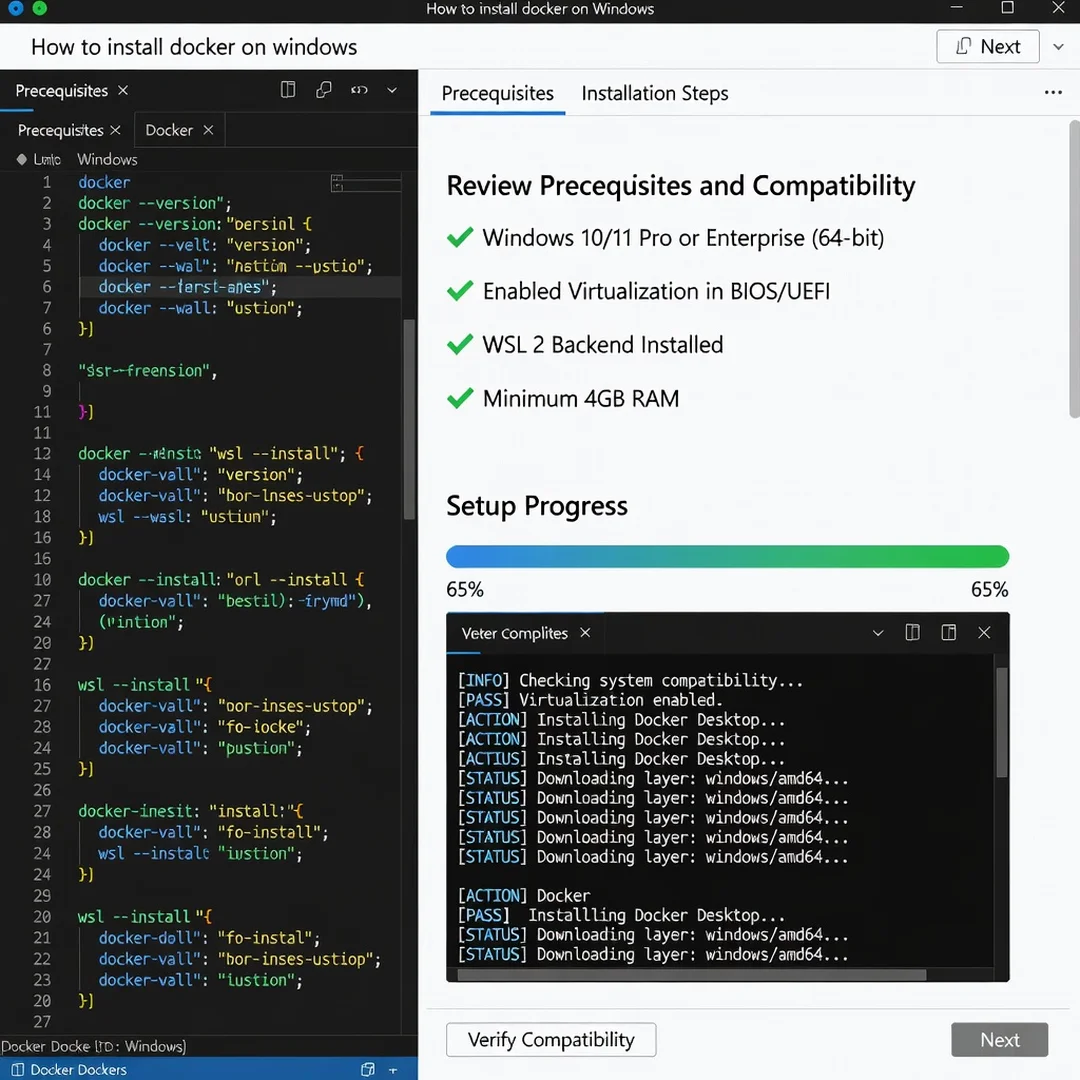
Step 1: Review prerequisites and compatibility
Open a PowerShell window and verify the Windows build with winver, confirm the architecture (x64 or ARM64) in Settings → System → About, and check that virtualization is enabled in Task Manager. Confirm your Windows edition supports the backend you chose. If you plan to use Hyper-V, verify the Hyper-V feature is available. Document your machine’s specs — administrators should log this for fleet consistency.
Step 2: Prepare the environment
Close other virtualization software such as VirtualBox or VMware, which can conflict with Hyper-V and WSL 2. Temporarily disable third-party antivirus real-time scanning if it is known to block installer services. Ensure at least 2 GB of free disk space. Reboot after any Windows feature change so pending configurations apply cleanly.
Step 3: Configure core settings
Set the WSL default version to 2 if you have not already (wsl --set-default-version 2). Administrators deploying centrally should prepare the admin-settings.json configuration file now, choosing settings such as the default backend, resource limits, and whether users may change them. Decide whether Docker Desktop should start at login; this is a per-user setting but can be locked down by policy.
Step 4: Run the main installation procedure
Download the Docker Desktop installer from Docker’s official website, matching your architecture. Then:
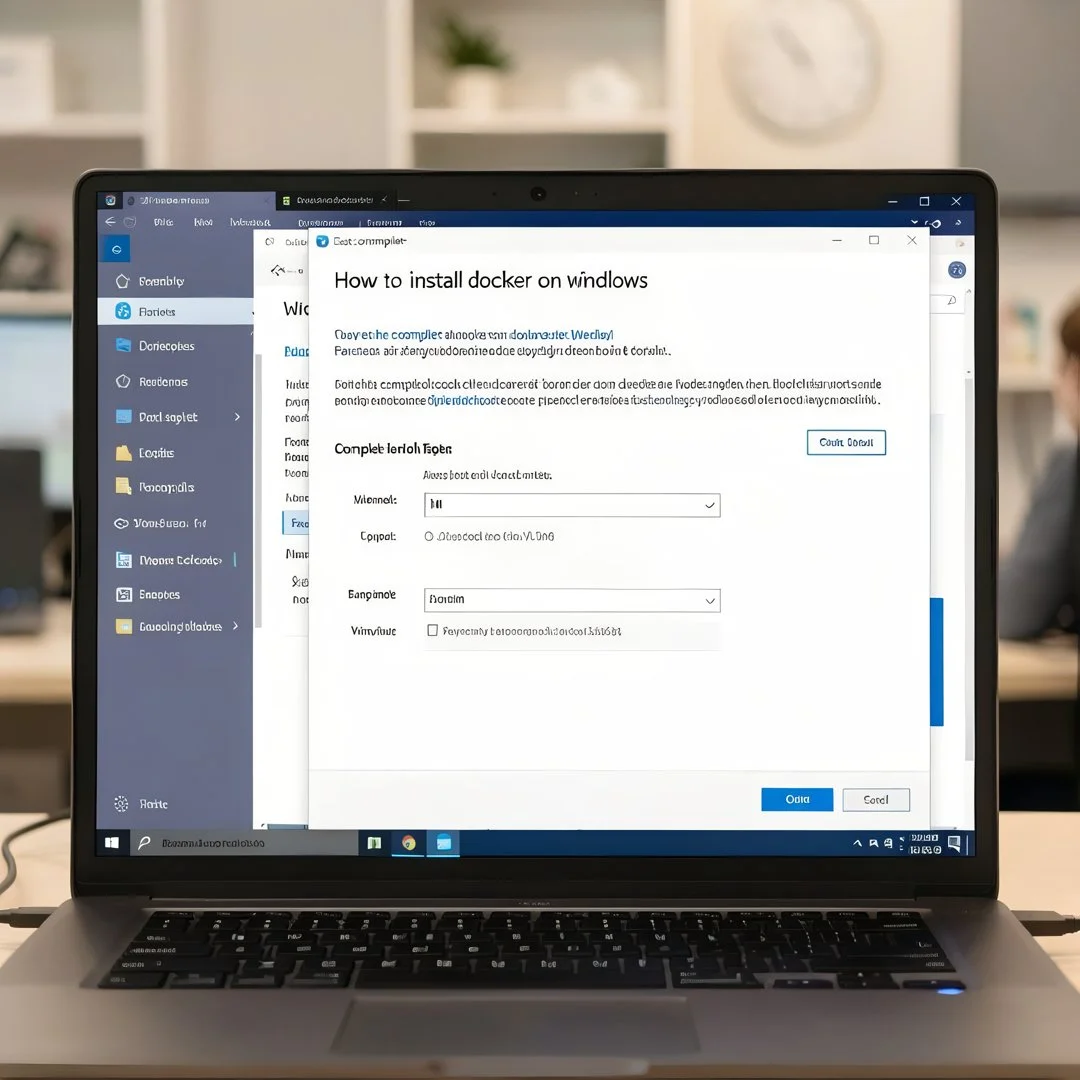
- Double-click the installer and accept the UAC prompt.
- Choose “Use WSL 2 instead of Hyper-V” if prompted (default on most systems) or keep Hyper-V if your organization requires it.
- Leave “Add shortcut to desktop” and “Add Docker to PATH” checked unless policy says otherwise.
- Click OK and wait for files to unpack. When prompted, log out and back in or restart to finish.
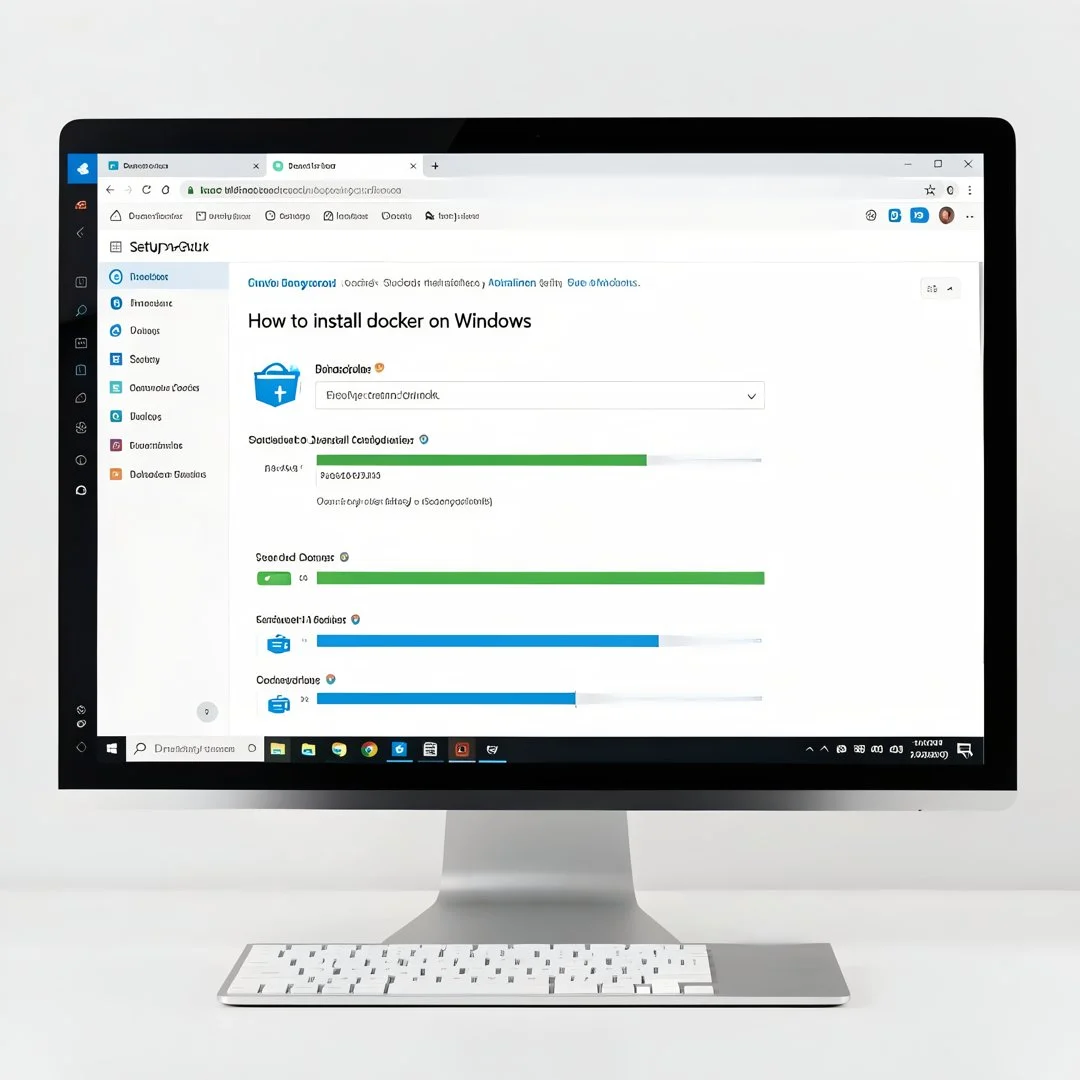
For silent or scripted installs, the command in the Preparation section installs without user interaction. After installation, launch Docker Desktop from the Start menu and accept the service agreement. If Docker Desktop requires you to sign in, you can skip sign-in in recent versions, though some enterprise features are gated behind an account.
Step 5: Verify the installation
Open a new PowerShell or Command Prompt window and run:
docker --version— confirms the CLI is installed and on PATH.docker run hello-world— pulls a tiny image and runs it; success prints a confirmation message.docker info— shows the engine version, backend (WSL 2 or Hyper-V), storage driver, and resource allocation.docker compose version— confirms Compose is available.
If hello-world runs, the engine and networking are working. If it hangs, the engine may still be starting — check the Docker Desktop dashboard for status.
Step 6: Configure post-install options
Set resource limits in Settings → Resources (CPU, memory, swap, disk image size). Configure a registry mirror if you are behind a corporate proxy, and add trusted registries for security. Enable “Start Docker Desktop when you sign in” if appropriate. Administrators should verify settings via Group Policy, test with a representative image pull, and confirm that WSL distributions still function as expected.
Post-Installation
After the first successful run, a few adjustments will make the environment safer and more efficient.
- Update regularly. Docker Desktop and WSL both receive frequent updates. Enable automatic updates or schedule them through your management tooling.
- Manage images and volumes. Run
docker system pruneperiodically to reclaim disk space, and set a disk image size that accommodates your workloads. - Configure security. If you joined the organization’s Docker business subscription, enable enforced sign-in and SSO through admin settings. Keep Docker Desktop’s “Enhanced Container Isolation” option on where available.
- Understand the WSL 2 file system. Files inside the Linux distribution are far faster for bind mounts than files on the Windows drive. Store project data inside WSL when performance matters.
- Backup and documentation. Record your
admin-settings.json, registry mirrors, and proxy configuration for disaster recovery. Administrators should include Docker in their endpoint imaging baseline.
For users with no Linux background, the WSL 2 distribution that Docker installs is a self-contained Linux environment; you rarely need to touch it directly. The Docker CLI commands you run from PowerShell behave as documented, and most tutorials translate cleanly.
Troubleshooting
Installation issues on Windows almost always trace back to virtualization, WSL configuration, or conflicting software. Work through the fixes below in order.
- “WSL 2 installation is incomplete.” Run
wsl --updateand reboot. If that fails, enable the Virtual Machine Platform and WSL features manually viadismand reinstall the kernel update package. - “Hardware assisted virtualization and data execution protection must be enabled.” Re-enter BIOS/UEFI and enable VT-x/AMD-V. On some laptops, disable Trusted Execution or Hyper-V Platform inconsistencies can interfere — confirm via Task Manager.
- Docker Desktop fails to start. Run
wsl --shutdown, then restart Docker Desktop. Reset to factory defaults from the dashboard’s Troubleshoot menu if the engine remains unhealthy. - Port or container conflicts. Stop conflicting containers with
docker ps -aanddocker rm. For port conflicts, change the host port mapping. - Network or proxy problems pulling images. Configure the HTTP proxy in Docker Desktop Settings and verify corporate certificates are trusted.
- Conflicts with other hypervisors. If Hyper-V is enabled, VirtualBox and VMware may need their latest versions. Alternatively, switch Docker Desktop to the WSL 2 backend to avoid the conflict.
- Slow file access. Move projects into the WSL file system or enable file sharing optimizations for the specific drive.
Administrators should also check Windows Event Viewer under Application and System logs, plus %AppData%\Docker\log.txt , when escalating issues.
You now have a complete workflow for How to install docker on windows. Keep your system updated, monitor resource usage, and revisit this guide when software versions change.
Next steps: harden your server firewall, set up automated backups, and explore related tutorials linked above.