In today’s digital landscape, the ability to Build Mobile APP using AI is transforming how we approach app Learn more about the steps and the final checks.
In today’s digital landscape, the ability to Build Mobile APP using AI is transforming how we approach app development. With the rise of artificial intelligence tools, even those without coding skills can create sophisticated mobile applications. This shift is significant as it democratizes technology, allowing entrepreneurs, small businesses, and hobbyists to bring their ideas to life without the steep learning curve traditionally associated with programming. In this article, we will explore how you can leverage AI to streamline the app development process and make your vision a reality.
The popularity of no-code platforms has surged, making it easier than ever to Build Mobile APP using AI. Replit, an innovative AI-powered platform, allows users to quickly design and deploy mobile applications without needing extensive technical knowledge. This tutorial will guide you through the process of utilizing Replit’s powerful features to create your app efficiently. By harnessing the capabilities of AI, you can automate repetitive tasks, saving time and effort while focusing on creativity and functionality.
As the demand for mobile applications continues to grow, understanding how to Build Mobile APP using AI is becoming increasingly important. This article will provide you with step-by-step instructions and insights into the world of AI-driven app development. You will learn how to navigate Replit’s user-friendly interface, utilize AI tools effectively, and access a wealth of online resources for further learning. By the end of this tutorial, you’ll be equipped with the knowledge and skills to create your own mobile app, regardless of your coding background.
Step-by-Step Tutorial
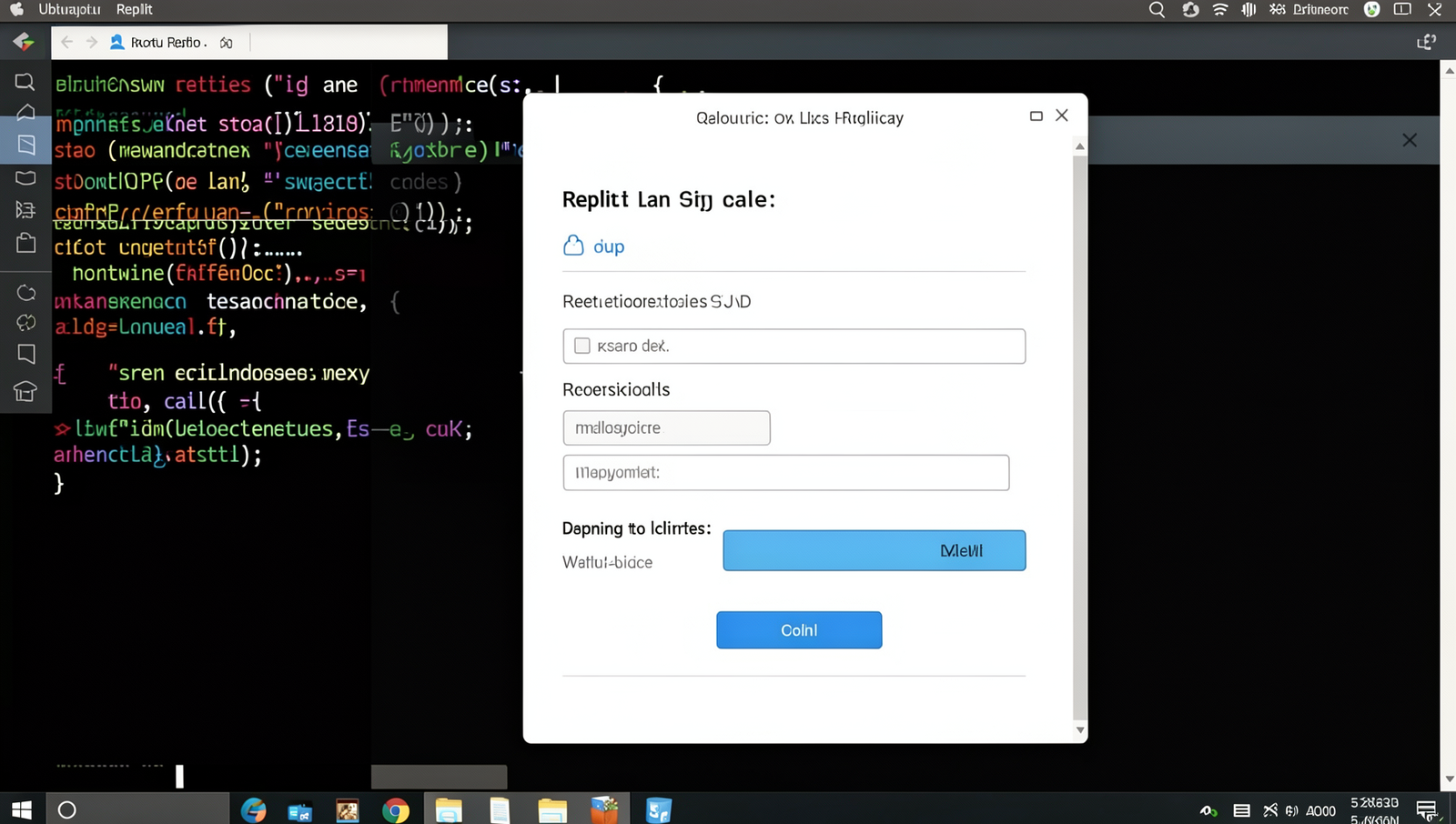
Step 1: Set Up Your Replit Account
- Visit the Replit website to begin the sign-up process.
- Click on the “Sign Up” button located at the top right corner of the homepage.
- Fill in the required fields:
- Email: Enter a valid email address.
- Username: Choose a username that reflects your project.
- Password: Create a strong password for security.
- After filling in the details, click on the “Create Account” button.
- Check your email inbox for a verification email from Replit.
- Click on the verification link in the email to verify your account.
Expected: You will have a fully functional Replit account ready for use.
Tips: Use a strong password for security. Consider using a username that reflects your project.
Warnings: Ensure you use a valid email address for verification.
Troubleshooting & Verification
If you encounter issues while setting up your Replit account, ensure your internet connection is stable. Verify your email for confirmation links and check your spam folder. If problems persist, try clearing your browser cache or using a different browser for the setup process.
Step 2: Create a New Replit Project
- Once you are logged into your Replit account, locate the ‘Create’ button on the dashboard. This is usually found at the top right corner of the screen.
- Click on ‘Create’ to initiate the process of starting a new project.
- From the list of available templates, select ‘HTML, CSS, JS’. This template is ideal for building mobile applications.
- In the project name field, enter a name that is both short and descriptive, reflecting the purpose of your mobile app.
- After naming your project, click on the ‘Create Repl’ button to finalize the creation of your new project workspace.
Once completed, a new project workspace will be created with the selected template, ready for you to start building your mobile app.
Tips: Keep your project name short and descriptive. Explore the template options to understand their features.
Warnings: Make sure to name your project something relevant to avoid confusion later.
Troubleshooting & Verification
If you encounter issues creating a new Replit project, ensure your internet connection is stable. Clear your browser cache and cookies, then try again. Verify that you are logged into your Replit account and that your browser is up to date.
Step 3: Explore Replit AI Features
- Access the AI Tools Section:Log in to your Replit account and navigate to the dashboard. Look for the “AI” section in the sidebar menu. Click on it to open the AI tools available for your project.
- Familiarize with Code Generation:Within the AI tools, locate the code generation feature. This tool can help you write code snippets based on your app requirements. Experiment by inputting different prompts to see how the AI generates code.
- Utilize Debugging Tools:Explore the debugging features offered by Replit AI. Use these tools to identify and fix errors in your code. Input your code into the debugger and review the suggestions provided by the AI.
- Experiment with Different Features:Try out various AI capabilities, such as natural language processing or data analysis tools. See which features enhance your app development process the most.
- Stay Updated:Regularly check for updates on Replit’s AI capabilities. New features may be added that can further assist you in your app development journey.
Tips: Experiment with different AI features to see what works best for your needs. Warnings: AI tools may have limitations; always review generated code for accuracy and functionality.
Troubleshooting & Verification
If you encounter issues while exploring Replit AI features, ensure your internet connection is stable. Clear your browser cache and cookies, and try refreshing the page. Verify that you have the latest version of your browser and check for any updates in Replit.
Step 4: Design Your App Interface
- Set Up Your HTML Structure:
Begin by creating a basic HTML structure for your app. Use semantic elements like<header>,<nav>,<main>, and<footer>to organize your content. - Include a CSS Framework:
To speed up your design process, include a CSS framework like Bootstrap. Add the following line in the<head>section of your HTML:<link rel="stylesheet" href="https://stackpath.bootstrapcdn.com/bootstrap/4.5.2/css/bootstrap.min.css"> - Create a Responsive Layout:
Use Bootstrap’s grid system to create a responsive layout. For example, wrap your content in a<div class="container">and use<div class="row">and<div class="col">classes to structure your app. - Add Styling:
Customize your app’s appearance by adding your own CSS. Create astyles.cssfile and link it in your HTML:<link rel="stylesheet" href="styles.css"> - Test Responsiveness:
Use browser developer tools to test your app on different screen sizes. Ensure all elements scale correctly and maintain usability.
By following these steps, you will create a visually appealing and functional app interface that is user-friendly and responsive.
Tip: Keep the design simple and intuitive for the best user experience.
Warning: Always test your design on various devices to ensure it looks great everywhere.
Troubleshooting & Verification
If your app interface isn’t displaying correctly, ensure all components are properly linked and configured. Check for any missing assets or incorrect settings. Test on multiple devices to verify compatibility. Review the tutorial steps to confirm adherence to the design guidelines.
Step 5: Implement AI Features
- Choose AI Features: Decide on the AI functionalities that align with your app’s purpose. Options include chatbots for customer support, recommendation systems for personalized content, or data analysis tools for insights.
- Set Up Your Environment: Ensure you have the necessary libraries installed. For advanced AI capabilities, use TensorFlow.js. Run the following command in your terminal:
npm install @tensorflow/tfjs - Implement Chatbot: Create a simple chatbot using JavaScript. You can use a library like Botpress. Install it with:
npm install botpressThen, integrate it into your app’s main script.
- Add Recommendation System: Use collaborative filtering or content-based filtering techniques. Implement a basic recommendation algorithm in your JavaScript code.
- Test AI Features: Thoroughly test all AI functionalities to ensure they work as intended. Use tools like Jest for unit testing:
npm install --save-dev jest - Deploy and Monitor: Once tested, deploy your app. Monitor the AI features post-launch to gather user feedback and make necessary adjustments.
Remember to ensure that all AI features are relevant to your app’s purpose to enhance user experience effectively.
Troubleshooting & Verification
If AI features are not functioning as expected, check the API keys and permissions. Ensure that the AI model is correctly integrated and that all dependencies are installed. Review error logs for any messages that can help identify the issue. Test with sample data.
Step 6: Test Your App
- Launch your app in the Replit environment by clicking the “Run” button. This will start the server and allow you to interact with your application.
- Open the preview window to see how your app looks and functions. Test all features thoroughly to ensure they work as intended.
- Use console logs to track down any issues. Add
console.log()statements in your code to monitor variable values and application flow. - Identify and fix any bugs that arise during testing. Utilize the debugging tools available in Replit to assist in this process.
- Gather feedback from users who test your app. Encourage them to report any issues or suggest improvements.
- For the best results, test your app on actual mobile devices. This will help you identify any device-specific issues that may not appear in the Replit environment.
By following these steps, you should achieve a fully functional app that is free of major bugs and issues.
Troubleshooting & Verification
If your app isn’t functioning as expected, ensure all components are properly linked and configured. Check for any error messages in the console. Test on multiple devices to confirm compatibility. Restart the app and Replit environment if issues persist.
Step 7: Deploy Your Mobile App
- Finalize Testing: Before deployment, ensure that all features and links in your app function correctly. Conduct thorough testing to identify and fix any bugs.
- Access Deployment Options: In Replit, navigate to the “Deploy” section of your project dashboard.
- Select a Domain: Choose a suitable domain name for your app. You can use a custom domain or select from Replit’s available options.
- Deploy the App: Click on the “Deploy” button to make your app live. Follow any prompts to complete the deployment process.
- Promote Your App: Share your app on social media platforms to attract users. Create engaging posts to generate interest.
- Monitor Performance: After deployment, keep an eye on your app’s performance. Use analytics tools to track user engagement and identify areas for improvement.
By following these steps, your mobile app will be live and accessible on the internet. Remember to ensure all links and features work correctly before deployment to provide a seamless user experience.
Troubleshooting & Verification
If your mobile app fails to deploy, check for any error messages in the console. Ensure all dependencies are correctly installed and configurations are set. Verify your internet connection and try redeploying. Consult Replit’s documentation for additional troubleshooting tips if issues persist.
Step 8: Gather User Feedback and Iterate
- Create a Feedback Form: Design a simple feedback form using tools like Google Forms or Typeform. Include questions about user experience, features they like, and areas for improvement.
- Share the Feedback Form: Distribute the feedback form through your app, social media, and email newsletters to reach a wider audience.
- Analyze Feedback: Regularly review the collected feedback to identify common themes and suggestions. Look for patterns that indicate areas needing improvement.
- Prioritize Changes: Based on the feedback analysis, prioritize the changes and updates that will have the most significant impact on user satisfaction.
- Implement Improvements: Make the necessary updates to your app. This may include fixing bugs, adding new features, or enhancing existing functionalities.
- Communicate Updates: Inform your users about the changes made based on their feedback. This shows that you value their input and are committed to improving their experience.
- Iterate Continuously: Repeat this process regularly to ensure your app evolves with user needs and stays relevant in the market.
By following these steps, you will develop an improved app over time, enhancing user satisfaction and engagement.
Tips: Make it easy for users to provide feedback and keep your app updated regularly.
Warnings: Be open to criticism and suggestions from users; they are vital for your app’s growth.
Troubleshooting & Verification
To ensure user feedback is effectively gathered, verify that surveys or feedback forms are accessible within the app. Check for any bugs that may hinder user interaction. Analyze feedback trends and prioritize issues for iteration, ensuring improvements align with user needs.
Conclusion
In this tutorial, we explored how to build a mobile app using AI without any coding skills, leveraging the capabilities of Replit. By following the key steps of setting up your project, utilizing AI tools for design and functionality, and testing your app, you can create a fully functional mobile application tailored to your needs. The benefits of this approach include saving time, reducing complexity, and empowering individuals to bring their ideas to life.
As you move forward, consider experimenting with different AI features and functionalities to enhance your app further. The journey of building a mobile app using AI is just beginning, and with the right tools and creativity, the possibilities are endless.
Frequently Asked Questions
What is the Replit AI Mobile App Tutorial?
The Replit AI Mobile App Tutorial is a comprehensive guide designed to help users create mobile applications using artificial intelligence without any coding experience. This tutorial leverages Replit’s powerful platform, which integrates AI tools to simplify the app development process. Users can follow step-by-step instructions to design, build, and deploy their mobile apps efficiently. The tutorial covers various aspects of app development, including user interface design, functionality implementation, and testing, making it an ideal resource for aspiring app developers.
Do I need coding skills to use Replit AI?
No, you do not need any coding skills to use Replit AI for building mobile applications. The tutorial is specifically designed for individuals with little to no programming background. It utilizes a user-friendly interface and AI-driven tools that automate many aspects of app development. This allows users to focus on creativity and functionality rather than technical coding challenges. The tutorial provides clear instructions and visual aids to guide you through the process, making app creation accessible to everyone.
What platforms can I build apps for?
With the Replit AI Mobile App Tutorial, you can build applications for both iOS and Android platforms. The tutorial provides insights into the specific requirements and guidelines for each platform, ensuring that your app is compatible and optimized for a wide range of devices. By following the tutorial, you will learn how to create apps that can be published on popular app stores, reaching a broader audience. This cross-platform capability makes it an excellent choice for developers looking to maximize their app’s reach.
Is the tutorial suitable for beginners?
Yes, the Replit AI Mobile App Tutorial is highly suitable for beginners. It is designed with novice users in mind, offering a straightforward approach to mobile app development. The tutorial breaks down complex concepts into manageable steps, ensuring that even those with no prior experience can follow along. Additionally, it includes helpful resources, tips, and examples that enhance the learning experience. By the end of the tutorial, beginners will have the confidence and knowledge to create their own mobile apps using AI tools.