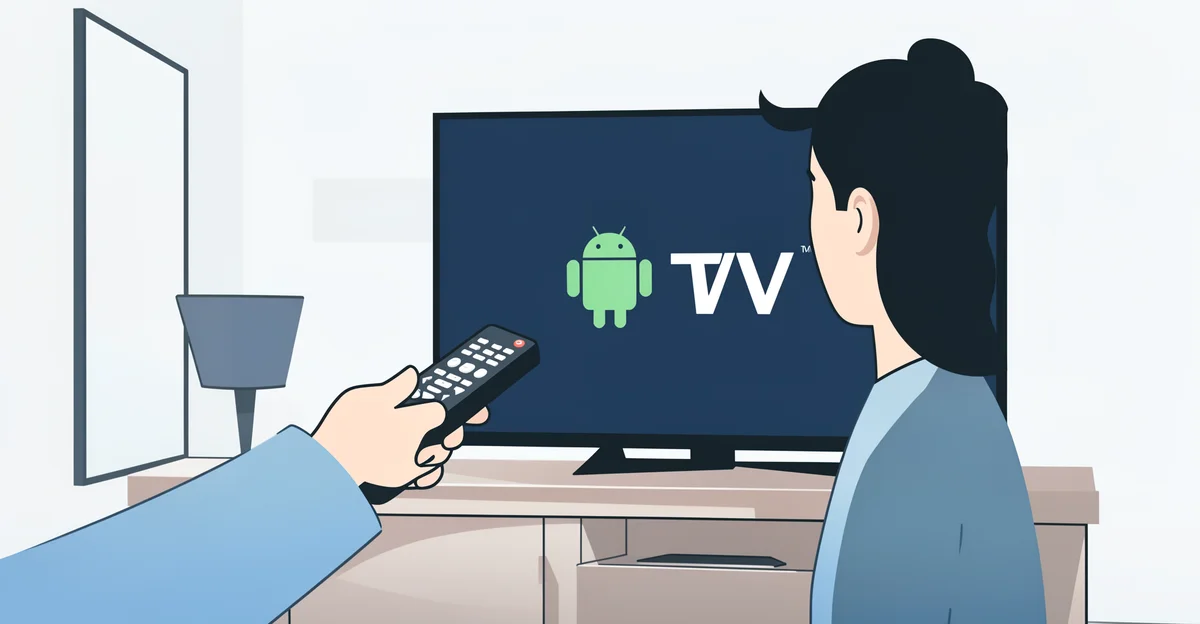
Como Saber Televisor Es Android O — ¿Alguna vez te has preguntado si tu televisor funciona con Android TV o Learn more about the steps and the final checks.
En esta guía te explicamos paso a paso cómo saber si tu televisor es Android u otro sistema operativo, usando métodos rápidos como el menú de ajustes, el control remoto o el fabricante del dispositivo. Así podrás tomar mejores decisiones sobre apps, compatibilidad y configuración.
Introduction
Determining whether your television runs Android TV, Google TV, or a completely different operating system is one of the most practical questions a modern viewer can ask. The answer affects which apps you can install, how you navigate the interface, which voice assistants work, and whether you can cast content from your phone. Yet many people simply assume that a smart TV is “Android” because it has apps like YouTube or Netflix. In reality, the smart TV landscape includes Android TV, Google TV, Roku OS, Samsung Tizen, LG webOS, Amazon Fire TV OS, Vidaa, Titan OS, and several proprietary platforms that only look similar on the surface.
This article explores como saber televisor es android o otro sistema operativa with clear, practical guidance. Instead of guessing, you will learn exactly where to look, what to check on the screen, and which clues are reliable versus misleading. Understanding the fundamentals of como saber televisor es android o otro sistema operativa helps you make informed decisions, whether you are buying a new TV, troubleshooting an app, or deciding whether to add a streaming stick. By the end, you will be able to identify your TV’s operating system in under two minutes and know what that means for your daily use.
Key Concepts
Before diving into the step-by-step checks, it helps to define the terms clearly. An operating system (OS) on a television is the software layer that controls the home screen, app store, settings menus, updates, remote control behavior, and voice search. Two TVs can look nearly identical in picture quality but behave very differently because of the OS underneath.
Many users talk about “Android TV” as a single thing, but it is actually a family. The most common variants are:
- Android TV: The older Google platform, still found on many Sony, TCL, Hisense, and Philips models. It uses a row-based home screen and the Google Play Store.
- Google TV: The newer interface layered on top of Android TV. It focuses on content recommendations and is found on newer Sony, TCL, and Chromecast devices.
- AOSP-based systems: Some low-cost TVs use a bare-bones Android Open Source Project build without Google services. They may not have the Play Store at all.
- Non-Android systems: Roku OS, Tizen (Samsung), webOS (LG), Fire TV OS (Amazon), Vidaa (Hisense), and Titan OS. These are not Android and cannot install Android APK files natively.
Another key concept is the difference between the brand of the TV and the operating system. A Sharp TV, for example, might run Roku OS in one region and Android TV in another. A TCL TV might run Roku OS, Google TV, or Fire TV depending on the model and year. This is why checking the model number and the on-screen interface matters more than trusting the brand name alone.
Finally, understand that “smart” does not equal “Android.” A TV can be smart with Roku, Tizen, or webOS and still offer Netflix, YouTube, Disney+, and Prime Video. The practical difference appears when you want a niche app, a specific IPTV player, or sideloaded software that is only distributed as an Android APK.
Deep Dive
To accurately identify your TV’s operating system, you need to combine several signals. No single clue is perfect, but together they give a confident answer.
The first signal is the home screen layout. Android TV typically shows a top row of apps, then content rows below, with a left-side navigation menu for Search, Home, Discover, and Apps. Google TV replaces this with a “For You” tab, a “Movies” tab, “Shows” tab, “Apps” tab, and a “Library” tab across the top. Roku OS shows a grid of large tiles on the right and a vertical menu on the left. Samsung Tizen uses a bottom row of apps that scrolls horizontally. LG webOS uses a bottom launcher bar with a card-based layout. Amazon Fire TV uses a prominent top navigation with Home, Find, Live, and Settings, plus heavy Amazon content promotion.
The second signal is the settings menu. On Android TV and Google TV, go to Settings and look for “About” or “System.” You will usually see “Android TV” or “Google TV” and an Android version number such as 9, 10, 11, or 12. On Samsung, the menu is under “Support” and “About This TV,” and it will mention Tizen. On LG, it will mention webOS. On Roku, the settings menu shows “System” and “About,” and the OS is simply called Roku OS.
The third signal is the app store. Android TV and Google TV use the Google Play Store, and the icon is the colorful triangle. Roku uses the Roku Channel Store. Samsung uses the Samsung Apps store. LG uses LG Content Store. Fire TV uses the Amazon Appstore. If you can install an APK file from a USB drive, you are almost certainly on an Android-based system, though newer Google TV versions have tightened this.
The fourth signal is the remote control. Android TV and Google TV remotes usually have a Google Assistant button and sometimes a dedicated YouTube or Netflix button. Roku remotes have a purple directional pad and dedicated channel buttons. Samsung remotes are often solar-powered or minimalist. LG remotes use a pointer-style “Magic Remote.” These physical clues are quick and reliable.
The fifth signal is voice search behavior. Say “Hey Google” and see if the assistant responds with the Google logo. On Fire TV, you say “Alexa.” On Samsung, you say “Bixby” or “Hey Google” depending on the model. On Roku, voice search is limited to the Roku interface. The assistant branding is a strong indicator of the underlying platform.
A final deep-dive point: some TVs run Android under the hood but hide it with a custom launcher. Hisense and Philips have done this in certain regions. In these cases, the Google Play Store and the Android version number in the settings are your best proof. If you see the Play Store and an Android version, treat it as Android-based even if the home screen looks custom.
Step-by-Step Guide
Follow these six steps to identify your TV’s operating system and act on that knowledge.
Step 1: Understand the fundamentals
Know what you are looking for. The main families are Android-based (Android TV, Google TV, AOSP), Roku OS, Samsung Tizen, LG webOS, Amazon Fire TV OS, and other proprietary systems like Vidaa and Titan OS. Write down the brand and model number of your TV from the sticker on the back or the box. This gives you a reference point when you compare what you see on screen with official documentation.
Step 2: Assess your starting point
Turn on the TV and observe the home screen without opening any app. Note the layout, the color scheme, and the navigation style. Check whether there is a “Google” logo, a Roku logo, a Samsung logo, or an LG logo visible anywhere. Open the settings menu and find the “About” or “System” section. Write down any OS name and version number you see. This initial assessment narrows the possibilities to one or two candidates.
Step 3: Set clear goals
Decide why you need to know the operating system. Common goals include installing a specific app, sideloading an IPTV player, setting up a VPN, casting from your phone, or deciding whether to buy a streaming stick. Your goal determines how much detail you need. If you only want to know whether you can install an APK, checking for the Google Play Store and Android version is enough. If you want a specific regional app, you may need to confirm the exact OS version and region.
Step 4: Gather necessary resources
Collect the tools that make verification easy. Have your TV remote ready, and if possible, a smartphone with the Google Home app or the Roku app. Look up your TV’s model number on the manufacturer’s official website to see the listed operating system. Keep a note of the app store name you see on the TV. If you plan to sideload, have a USB drive formatted correctly and the APK file ready, but only after confirming the TV is Android-based.
Step 5: Apply the core methods
Use the four core methods in order. First, check the settings “About” screen for the OS name. Second, open the app store and identify its branding. Third, test voice search and note which assistant responds. Fourth, inspect the remote for dedicated buttons. If three or more signals point to Android, you can be confident the TV is Android or Google TV. If the app store is Roku Channel Store, Samsung Apps, LG Content Store, or Amazon Appstore, it is not Android. Document your finding so you do not have to repeat the process later.
Step 6: Monitor your progress
After identifying the OS, test one practical action to confirm. Try installing a free app from the store, or attempt to cast from your phone. If the action succeeds as expected for that platform, your identification is correct. Recheck after any major system update, because some manufacturers change the interface or replace the OS in newer firmware. Reliable information and consistent habits lead to better long-term outcomes, so keep a simple note of your TV’s OS and version for future reference.
Best Practices
Use these habits to avoid confusion and get the most from your TV.
- Check the model number first: The exact model number is more reliable than the brand name. Search it on the manufacturer’s site to confirm the OS.
- Do not trust the presence of Netflix or YouTube: Every smart TV has these apps. They do not indicate Android.
- Look for the Google Play Store: Its presence is one of the strongest signs of an Android-based system.
- Verify the Android version: Older Android TV versions may not support newer apps. Knowing the version helps you decide whether to update or add a streaming stick.
- Be careful with sideloading: Only sideload APKs on TVs you own and trust. Unknown sources can introduce security risks.
- Keep the OS updated: Updates improve security, app compatibility, and performance. Enable automatic updates if available.
You now have a solid foundation for como saber televisor es android o otro sistema operativa. Apply the best practices above and revisit this guide as your needs evolve.