
5 min read • 1,106 words
how to creat a folder with — Creating a folder using the command line can be a quick and efficient way to Learn more about the steps and the final checks.
Whether you need to create a single folder or multiple directories at once, the mkdir command provides the flexibility to meet your needs. You can even create nested directories using the -p option, making it easier to set up complex folder structures in one go. Additionally, understanding how to handle existing folders and error messages will ensure a smooth experience when using cmd. Let’s dive into the details of how to create a folder with cmd and unlock the full potential of this command line utility.
Step-by-Step Tutorial
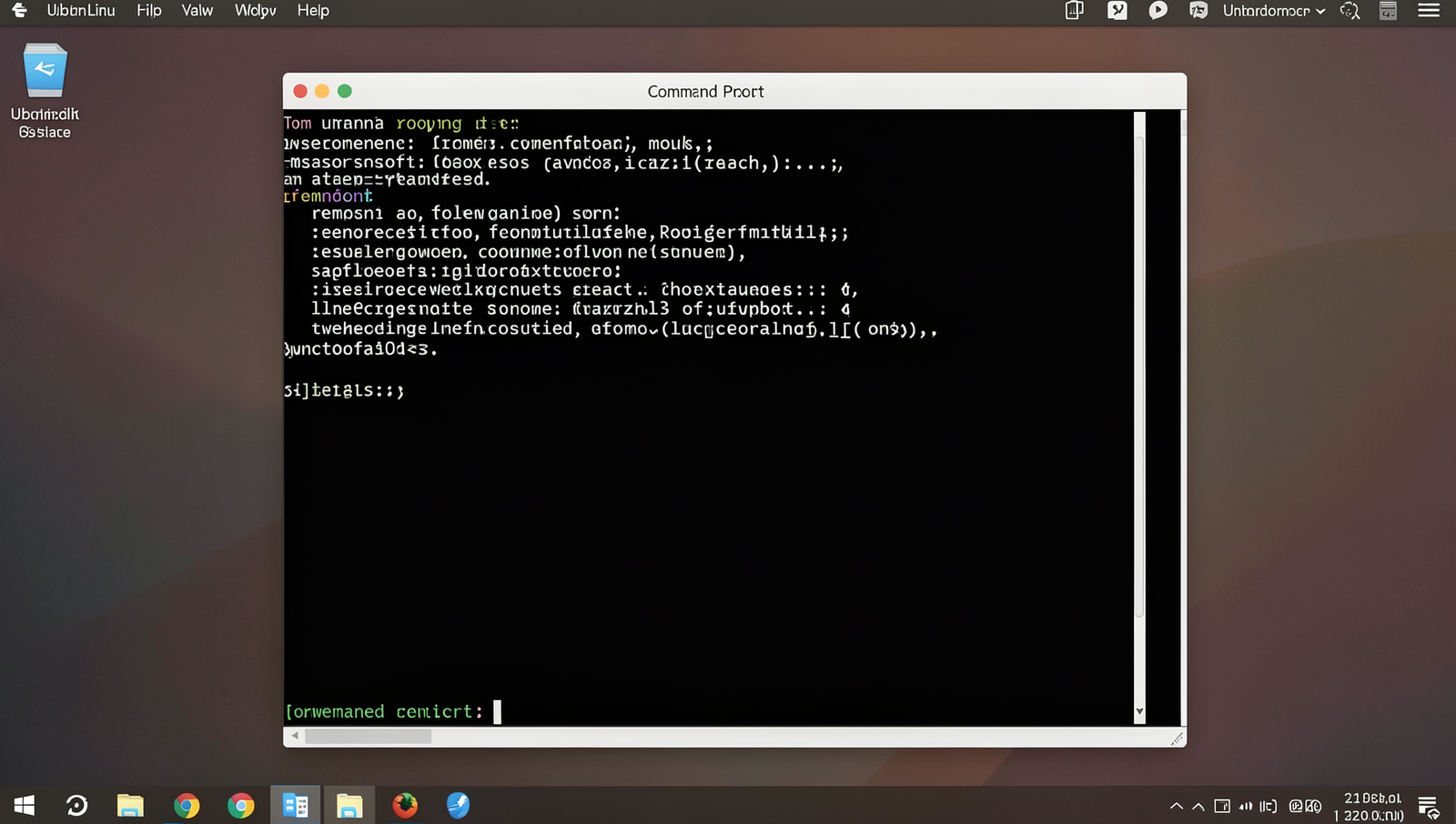
Step 1: Open Command Prompt
- Press the Windows key on your keyboard. This will open the Start menu.
- Type
cmdinto the search bar. As you type, you will see search results appear. - Once
Command Promptappears in the search results, pressEnter. This action will open the Command Prompt window, which typically displays a black screen with a blinking cursor. - Alternatively, you can press
Win + Rto open the Run dialog box. In the box, typecmdand pressEnterto launch Command Prompt. - If you need administrative privileges, right-click on
Command Promptin the search results and selectRun as administrator.
Ensure you have the necessary permissions to create folders in the desired location to avoid any errors while executing commands.
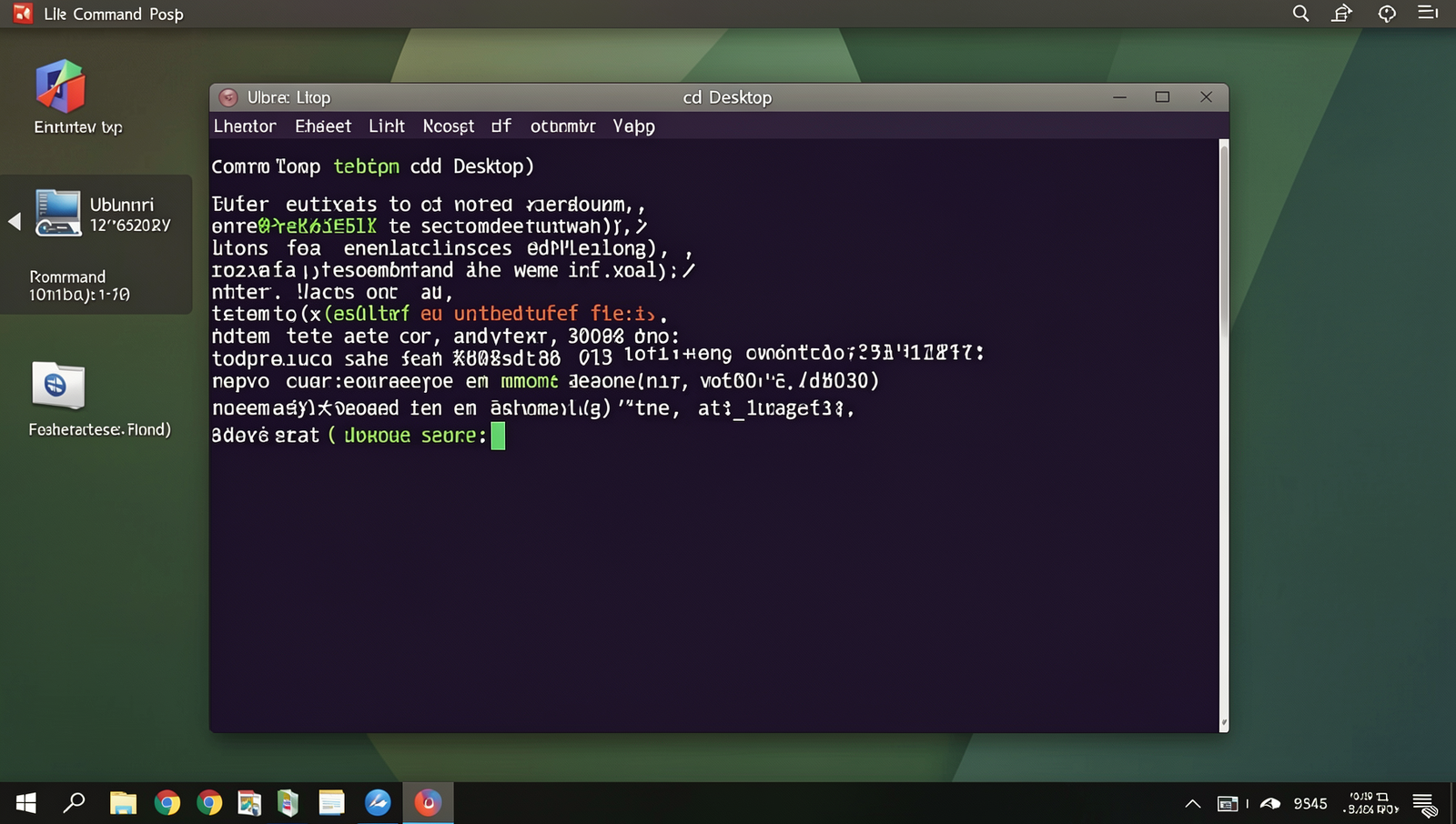
Step 2: Navigate to the Desired Directory
- Open the Command Prompt. You can do this by typing
cmdin the Windows search bar and selecting the Command Prompt application. - To navigate to the desired directory, use the
cdcommand followed by the path of the directory. For example, if you want to navigate to a folder named “Documents,” type: - If the folder is located in a different drive, first switch to that drive by typing the drive letter followed by a colon. For example:
- Once you are in the correct drive, use the
cdcommand to navigate to the desired folder. - To confirm your current directory, simply type:
- If you need to go up one directory level, use:
cd DocumentsD:dircd ..Ensure that the directory you are trying to navigate to exists to avoid errors.
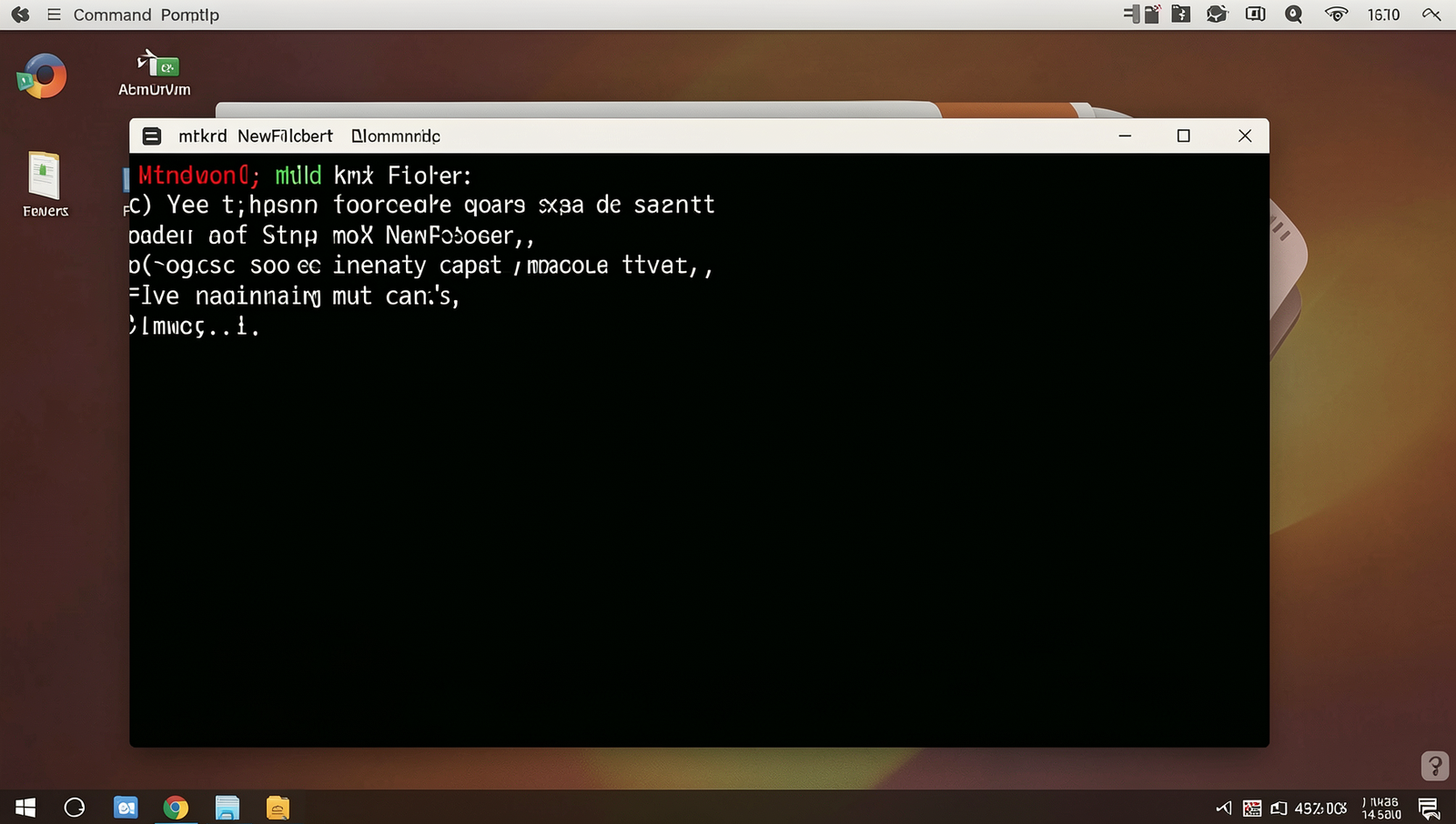
Step 3: Create the New Folder
- Ensure you are in the correct directory where you want to create the new folder. You can check your current directory by using the command
cd.
- Type the command
mkdir NewFolderto create a new folder named ‘NewFolder’. Replace ‘NewFolder’ with your desired folder name.
- Press the
Enterkey to execute the command. If successful, you will see no error messages, and a new folder named ‘NewFolder’ will appear in the specified directory. - If you want to create multiple folders at once, you can do so by typing
mkdir Folder1 Folder2, separating each folder name with a space.
- Remember to avoid using special characters in your folder names, as they may lead to errors during creation.
Step 4: Verify the Folder Creation
1. Open the Command Prompt if it is not already open.
2. Ensure you are in the directory where you created the folder. You can check your current directory by typing
cd and pressing Enter.
3. To list the contents of the current directory, type
dir and press Enter. This command will display all files and folders in the directory.
4. Look through the list for the name of the newly created folder. If it appears, the folder has been successfully created.
5. For a more compact view, you can use
dir /w to see the contents in a wide format.
6. If you do not see your folder, try refreshing the Command Prompt window or checking for any typos in the folder name or path.
Step 5: Close Command Prompt
- After confirming that your folder has been successfully created, you are ready to close the Command Prompt window.
- To close the window, you can type
exitand then press the Enter key on your keyboard. This will terminate the Command Prompt session. - Alternatively, you can quickly close the Command Prompt by pressing
Alt+F4on your keyboard. This keyboard shortcut is a fast way to close any application window. - If you plan to use the Command Prompt again soon, consider minimizing the window instead of closing it. You can do this by clicking the minimize button in the top right corner.
Remember to ensure that you have completed all necessary tasks in the Command Prompt before closing it, as any unsaved work will be lost.
Conclusion
In summary, learning how to create a folder with cmd is a valuable skill that can enhance your efficiency when managing files and directories in Windows. Using simple commands, you can quickly organize your workspace and keep your projects neatly arranged.
By mastering the command line, you not only gain speed but also a deeper understanding of your operating system. Whether you’re a beginner or an experienced user, knowing how to create a folder with cmd can streamline your workflow and make file management a breeze.
Frequently Asked Questions
How do I create a new folder using CMD?
To create a new folder using the Command Prompt (CMD), you can use the mkdir command followed by the name of the folder you want to create. For example, to create a folder named “NewFolder”, you would type:
mkdir NewFolder
Can I create multiple folders at once?
Yes, you can create multiple folders at once by specifying the names of the folders separated by spaces. For example:
mkdir Folder1 Folder2 Folder3What if the folder name has spaces?
If the folder name contains spaces, you need to enclose the name in quotes. For example, to create a folder named “My New Folder”, you would type:
mkdir "My New Folder"How can I check if the folder was created?
You can check if the folder was created by using the dir command to list the contents of the directory. If the folder appears in the list, it has been successfully created. For example:
dir