How to install windows 10 in — Windows 10 remains a reliable choice for millions of PCs in 2026, whether Learn Learn more about the steps and the final checks.
We’ll cover creating bootable USB media, adjusting BIOS or UEFI settings, handling activation, and installing essential drivers. By the end, you’ll have a clean, secure Windows 10 system that’s ready for everyday work or large-scale deployment.
Introduction
Windows 10 remains one of the most widely deployed desktop operating systems in the world, even as newer Windows releases mature. Many organizations continue to rely on Windows 10 for legacy line-of-business applications, specialized drivers, and hardware that predates Windows 11 requirements. This guide covers How to install windows 10 in 2026 in practical, step-by-step detail, whether you are setting up a single home PC or rolling out images across an enterprise fleet.
If you are a beginner, the process is approachable as long as you follow each stage carefully. If you are an IT administrator, the same core workflow scales to multiple machines, with additional attention to licensing activation, driver management, and post-deployment configuration. The fundamentals have not changed dramatically, but in 2026 you must account for updated firmware interfaces, modern storage controllers, and Microsoft account requirements that did not exist in the original Windows 10 era.
Prerequisites
Before you begin, confirm that your hardware and software environment can support the installation. Skipping this step is the most common cause of failed deployments.
- Processor and architecture: Confirm whether your device uses x86-64 (Intel or AMD) or ARM64. Windows 10 installation media is architecture-specific, and an ARM64 image will not boot on x86 hardware or vice versa. Always verify software compatibility with your hardware architecture (ARM64 vs x86) before downloading anything.
- Memory and storage: Microsoft lists 2 GB of RAM for 64-bit systems as a minimum, but 8 GB is realistic for 2026 workloads. Reserve at least 32 GB of free disk space, plus additional room for updates and applications.
- Firmware: UEFI with Secure Boot is standard. Confirm whether the system is configured for UEFI or Legacy BIOS, because your installation media must match.
- Licensing: Have a valid Windows 10 product key, a digital license linked to a Microsoft account, or volume licensing details if you are deploying in a corporate environment.
- Network: A wired connection is preferable. Wi-Fi drivers may not be present immediately after installation, particularly on newer laptops.
- Backups: If you are performing an in-place upgrade or dual-boot installation, back up all personal and business data first. Keeping your operating system updated before installation prevents dependency conflicts, so update the existing OS and firmware before you begin.
Preparation
Preparation determines how smooth the installation will be. Gather everything you need in advance so you are not hunting for drivers mid-install.
- Create installation media: Use the official Microsoft Media Creation Tool or the ISO download page to build a bootable USB drive of at least 8 GB. For enterprise use, consider building a custom image with the Microsoft Deployment Toolkit or Configuration Manager.
- Download drivers: Visit your PC or motherboard manufacturer’s support page and download chipset, storage, network, and graphics drivers for Windows 10. Save them to a separate USB drive.
- Record configuration details: Note your network settings, domain join information, and any application-specific prerequisites.
- Check application compatibility: Verify that every critical application supports Windows 10 and your hardware architecture. This is especially important for ARM64 devices, where x86 emulation works but native ARM64 builds perform better.
- Decide on installation type: Choose between a clean install, an in-place upgrade, or a dual-boot configuration. A clean install is the most reliable option for new or repurposed hardware.
Installation Steps
Step 1: Review prerequisites and compatibility
Boot into your firmware settings and confirm the boot mode, Secure Boot status, and TPM configuration. Check that your USB media matches the target architecture. Run the Windows 10 Setup compatibility check if you are upgrading an existing system. Document any warnings so you can address them before proceeding.
Step 2: Prepare the environment
Insert the bootable USB drive and restart the computer. Enter the boot menu, usually with F12, F10, or Esc during startup, and select the USB device. The Windows Setup environment will load. Choose your language, time, and keyboard preferences, then select Install now. If prompted for a product key, enter it or choose I don’t have a product key to activate later.
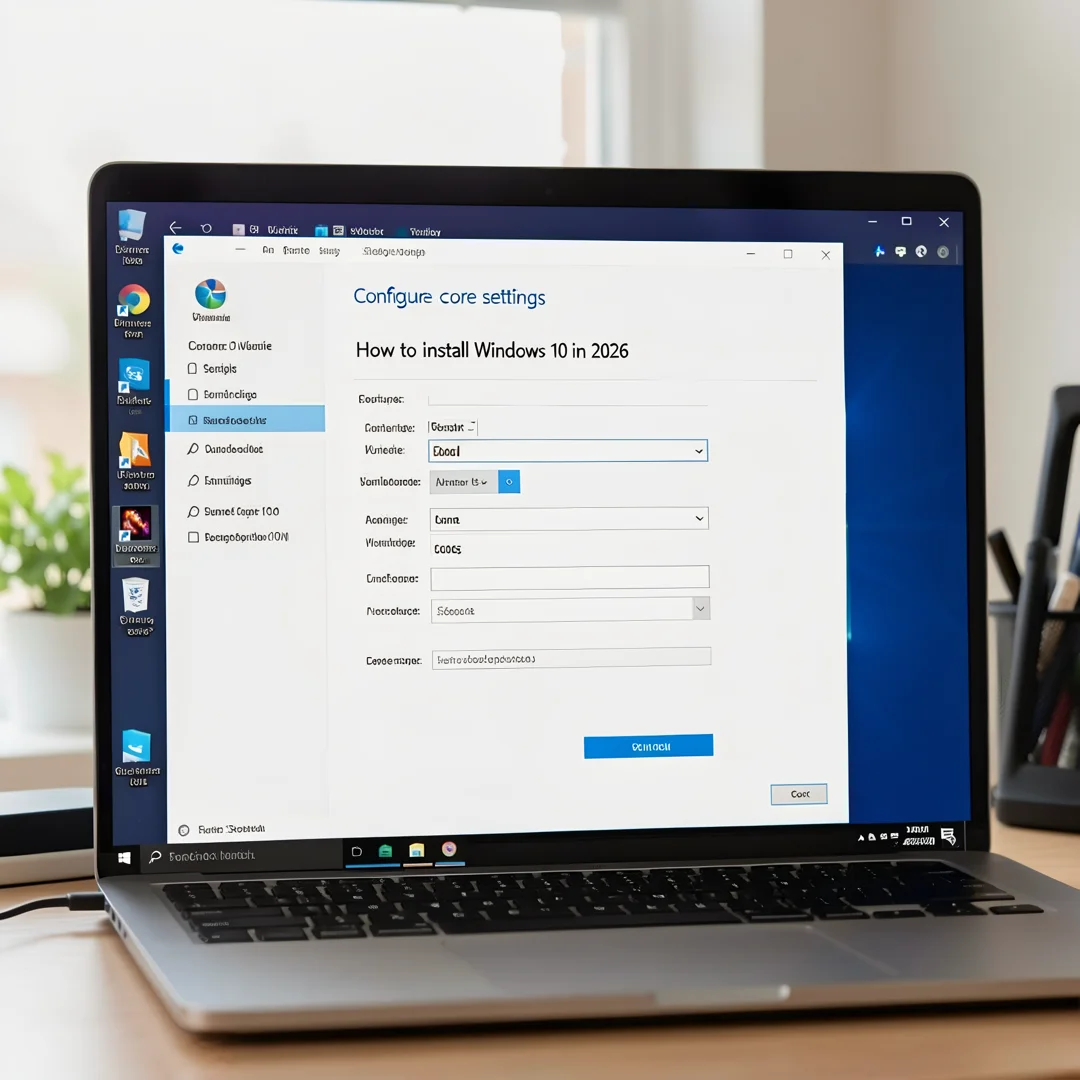
Step 3: Configure core settings
Select the edition of Windows 10 that matches your license. Accept the license terms. Choose Custom: Install Windows only (advanced) for a clean install. On the partition screen, delete existing partitions if you are repurposing the drive, then select the unallocated space and click Next. Windows will create the required partitions and begin copying files.
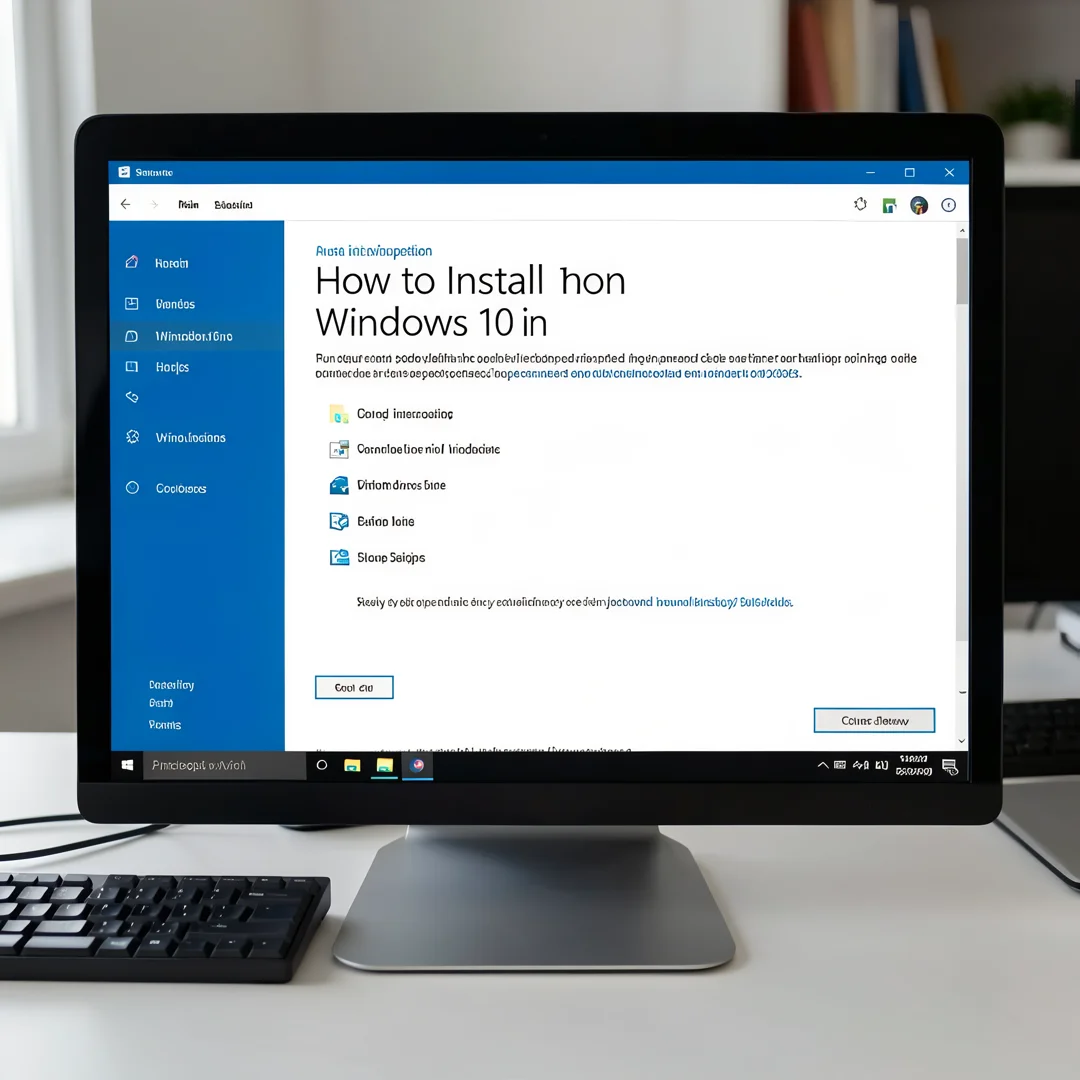
Step 4: Run the main installation procedure
The system will copy files, install features, and reboot several times. Do not remove the USB drive until you are prompted. Windows will then guide you through initial setup: region, keyboard layout, network connection, and account creation. In 2026, Microsoft strongly favors a Microsoft account; for business deployments, you can join a domain or use an Azure AD (Entra ID) account instead. Complete the privacy settings according to your organization’s policy.
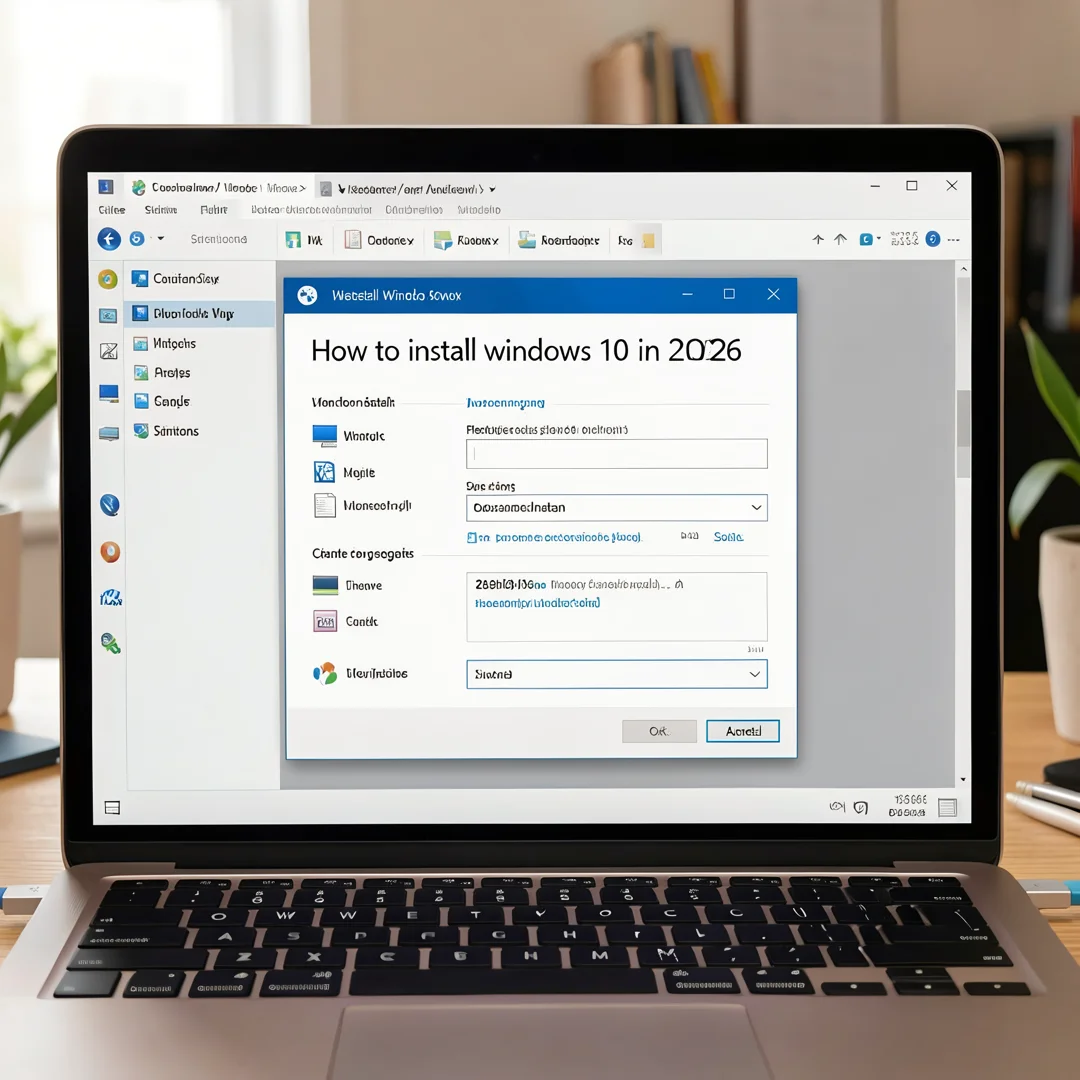
Step 5: Verify the installation
Once you reach the desktop, open Settings > System > About and confirm the Windows edition, version, and system type. Check Device Manager for any devices with warning icons. Run Windows Update repeatedly until no further updates are found. Test network connectivity, audio, display resolution, and any critical applications. If you are an administrator, verify domain join, group policy application, and endpoint management enrollment.
Post-Installation
After the operating system is running, complete these tasks to make the system production-ready.
- Activate Windows: Confirm activation under Settings > Update & Security > Activation. Volume license customers should use the appropriate KMS or MAK configuration.
- Install drivers: Use manufacturer packages rather than relying solely on Windows Update, especially for chipsets and graphics. ARM64 devices should receive vendor-specific drivers.
- Apply updates: Install all cumulative updates, servicing stack updates, and .NET updates.
- Configure security: Enable Windows Defender or your endpoint protection platform, configure firewall rules, and set up BitLocker or another disk encryption method.
- Install essential applications: Deploy browsers, productivity suites, and line-of-business software, verifying each runs correctly on the installed architecture.
- Create a restore point or image: Capture a baseline so you can roll back if a future update causes problems.
Troubleshooting
Installation issues are usually recoverable. Below are common problems and their solutions.
- USB drive not recognized: Rebuild the media using the official tool. Confirm the USB is formatted as FAT32 for UEFI systems and that the firmware boot order is correct.
- “Windows cannot be installed to this disk”: The drive may use a partition style incompatible with your boot mode. Convert between GPT and MBR using Diskpart, or switch firmware between UEFI and Legacy mode.
- Missing storage or network drivers: Load drivers manually during setup by clicking Load driver and pointing to the USB drive containing the extracted files.
- Activation errors: Check that the key matches the installed edition. Run the activation troubleshooter, especially after hardware changes.
- Blue screens after installation: Boot into Safe Mode, roll back recent drivers, or use System Restore.
FAQ
How long does it take to complete How to install windows 10 in 2026? A clean installation typically takes 20 to 45 minutes on modern hardware, plus another 30 to 60 minutes for updates, drivers, and application setup. Older machines or slow USB drives can extend this to two hours or more.
Do I need prior Linux experience? No. Windows 10 installation is entirely graphical and does not require Linux knowledge. Familiarity with firmware settings and disk partitioning helps, but the process is designed for beginners.
What if an installation step fails? Note the exact error message and the step where it occurred. Most failures are caused by incompatible media, missing drivers, or firmware settings. Retry with a freshly built USB drive and verified drivers. If the failure persists, consult Microsoft’s setup logs or your hardware vendor’s support documentation.
Frequently Asked Questions
How long does it take to complete How to install windows 10 in 2026?
Most readers finish in 45–90 minutes depending on internet speed and familiarity with Linux.
Do I need prior Linux experience?
Basic comfort with the terminal and SSH is helpful. This guide explains each command.
What if an installation step fails?
Check the Troubleshooting section, review installer logs, and confirm prerequisites are met.
You now have a complete workflow for How to install windows 10 in 2026. Keep your system updated, monitor resource usage, and revisit this guide when software versions change.
Next steps: harden your server firewall, set up automated backups, and explore related tutorials linked above.