How to install windows xp in — Installing Windows XP in 2026 might sound like a step back in time, yet many Learn more about the steps and the final checks.
This guide walks you through the entire process, from sourcing a clean ISO and preparing installation media to handling drivers and post-install security. We will also cover why you should isolate XP from modern networks, so you can enjoy retro compatibility without putting your wider systems at risk.
Introduction
Windows XP was released in 2001 and reached end of support in April 2014. Installing it in 2026 is no longer a mainstream task, but it remains a real one for hobbyists, retro-computing enthusiasts, industrial technicians, and IT administrators maintaining legacy equipment. You may need to run old manufacturing software, access archived data, or test hardware that only has XP drivers. This guide covers how to install Windows XP in 2026 in practical, step-by-step detail, including the compatibility and security realities you must plan for before you start.
Before you begin, understand the two hard constraints of a 2026 XP install. First, always verify software compatibility with your hardware architecture. XP is a 32-bit x86 operating system; it will not run natively on ARM64 systems such as most modern laptops and Apple Silicon Macs. It also has no native support for NVMe storage, UEFI-only firmware, or Secure Boot. Second, keeping your operating system and firmware updated before installation prevents dependency conflicts. On a modern host, that means updating your main OS, your virtualization platform, and your chipset firmware before creating the XP environment.
Because XP receives no security patches, never connect an XP machine directly to the public internet. Use it offline, on an isolated network, or inside a virtual machine with restricted networking.
Prerequisites
Confirm you have the following before starting:
- Installation media: A genuine Windows XP CD, or an ISO image with a valid product key. Slipstreamed images with Service Pack 3 are strongly preferred.
- Hardware or virtual machine: A physical PC from the XP era, or a virtualization tool such as VirtualBox, VMware Workstation, or QEMU. On ARM64 hosts, QEMU with x86 emulation can work, but performance will be very slow because it emulates the CPU rather than virtualizing it.
- Storage: At least 10 GB of free space. XP installs comfortably on 20 GB or less, but modern large drives may need capacity limiting or driver injection.
- Drivers: Chipset, storage controller, network, and graphics drivers for your exact hardware. XP Setup cannot see SATA drives in AHCI mode on many systems without a floppy-style F6 driver.
- Administrative access: On the host machine you use to create media or configure a hypervisor.
If you lack prior experience, do not worry. The steps below assume no Linux background and no prior XP installation experience.
Preparation
Preparation prevents most installation failures. Work through these tasks in order.
- Update the host environment. Patch your main operating system and firmware first. Keeping your operating system updated before installation prevents dependency conflicts in the virtualization layer and fixes USB and chipset bugs that can corrupt install media.
- Back up data. If the target disk contains anything you value, image it first. XP Setup will overwrite the partition table without asking twice.
- Create bootable media or a VM. Burn the ISO to a CD with a tool such as ImgBurn, or attach the ISO directly to a virtual machine. For physical installs on newer hardware, a USB installer built with WinSetupFromUSB or Rufus in MBR mode is the practical route.
- Match BIOS settings to XP. Set the storage controller to IDE or Legacy mode, disable Secure Boot, and switch firmware to Legacy/CSM boot if the option exists.
- Gather drivers now. Download and stage storage, chipset, and network drivers on a separate USB stick. XP Setup will need the storage driver during the text-mode phase if your controller is not natively supported.
- Plan for isolation. Decide in advance whether this machine will be offline permanently, on a VLAN with no internet route, or in a VM with networking disabled.
Installation Steps
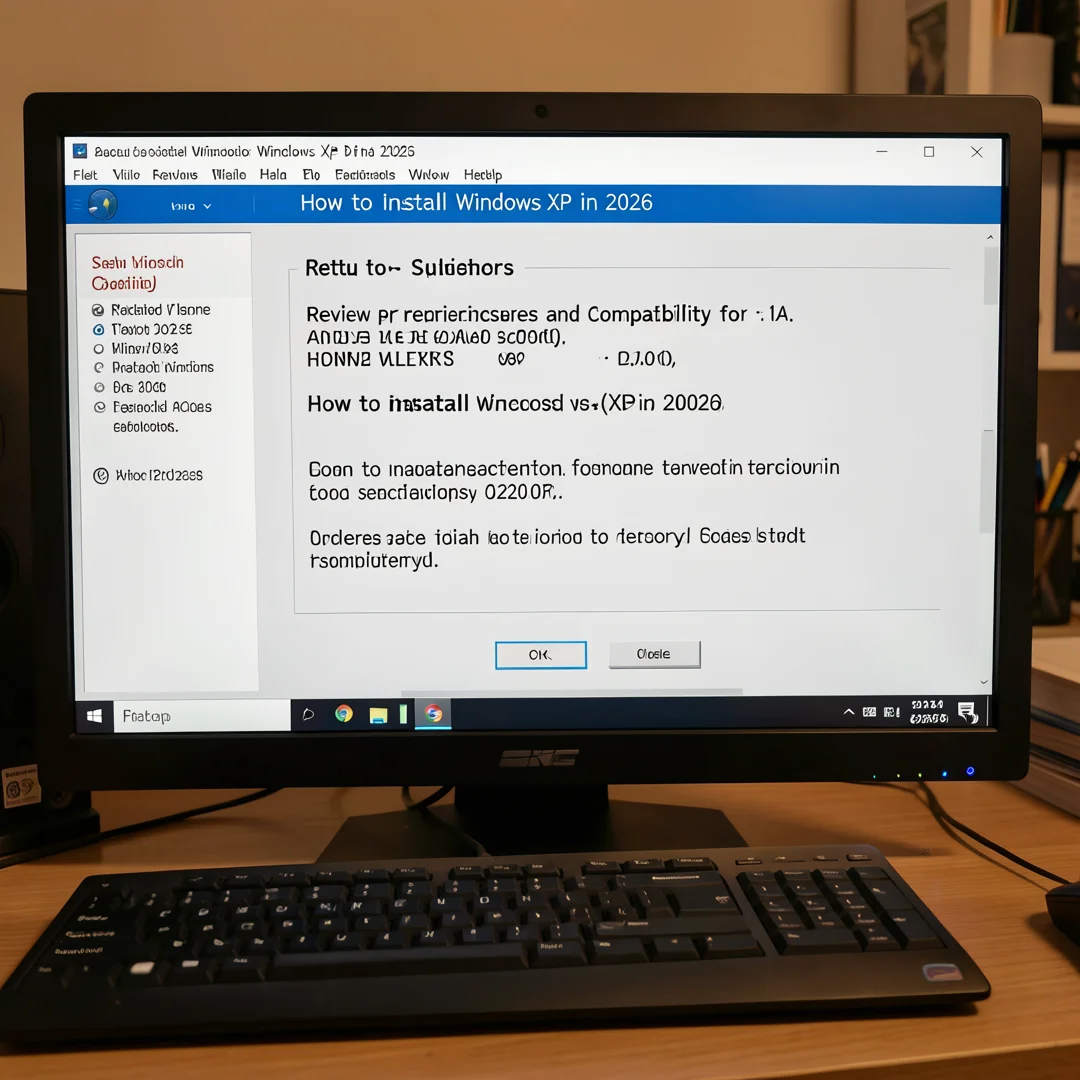
Step 1: Review prerequisites and compatibility
Re-check the list above against your specific hardware. Confirm the CPU is x86 or x86-64, not ARM64. Confirm the storage controller can operate in IDE or legacy mode. Confirm you have a valid product key and working install media. If any item fails, resolve it now rather than mid-install, because XP Setup offers very little recovery once it starts writing to disk.
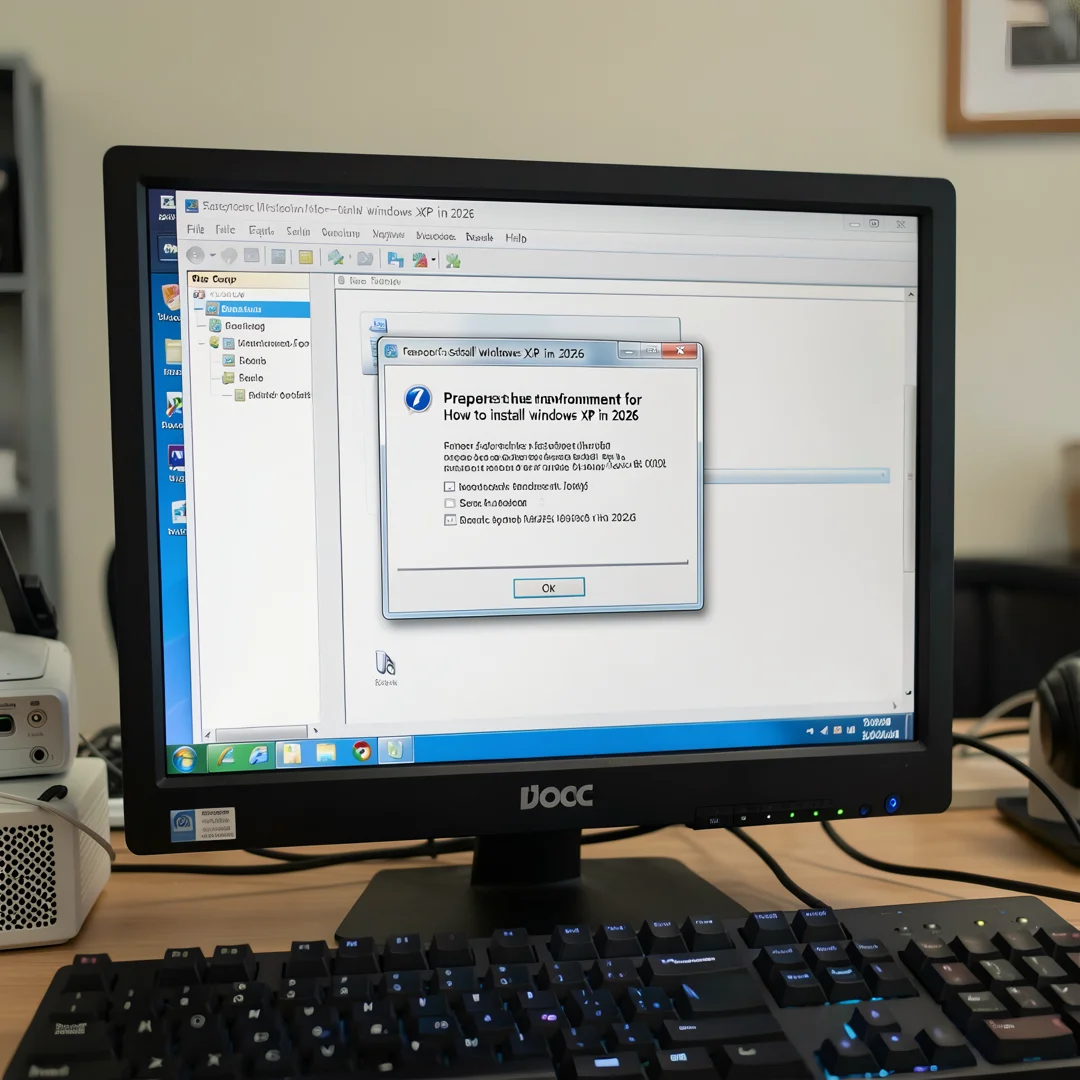
Step 2: Prepare the environment
Boot from your install media. On a physical machine, press the boot-menu key during POST and select the CD or USB device. In a virtual machine, start the VM with the ISO attached and press a key when prompted to boot from it. When the “Press any key to boot from CD” prompt appears, press a key immediately. At the “Welcome to Setup” screen, press Enter to begin. If the drive is not detected, press F6 to load the storage driver from a USB floppy or slipstreamed media.
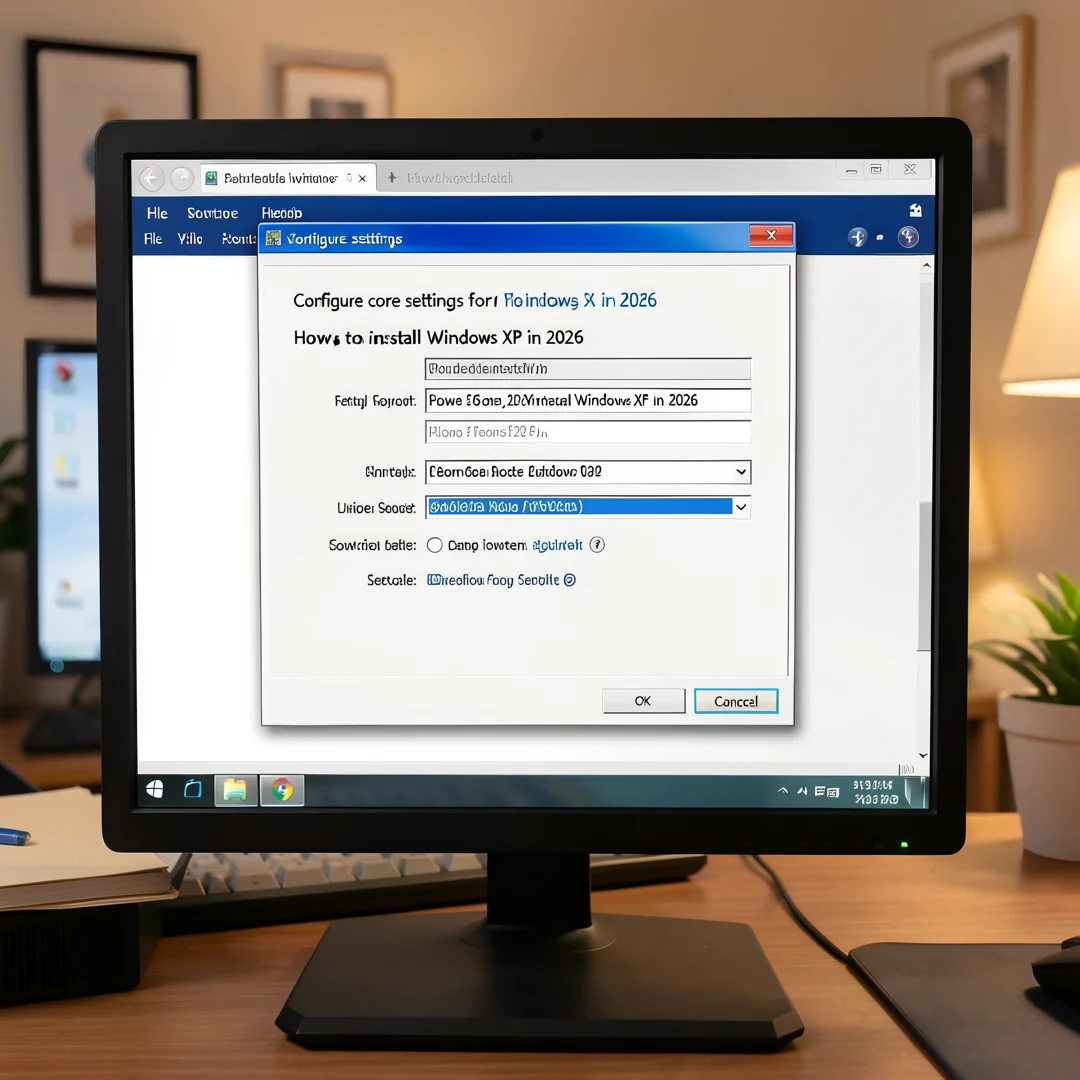
Step 3: Configure core settings
Accept the license agreement with F8. Setup lists available partitions. For a clean install, delete existing partitions and create a new one, then choose to format it as NTFS. NTFS is strongly recommended over FAT32 because it supports larger volumes and file permissions. XP Setup copies files and reboots. After reboot, the graphical phase begins, where you set regional and keyboard options, enter your name and organization, and input the 25-character product key. Choose a computer name and an administrator password. Set the date, time, and time zone, then select network settings. For an isolated machine, choose “Typical settings” and disable file sharing afterwards.
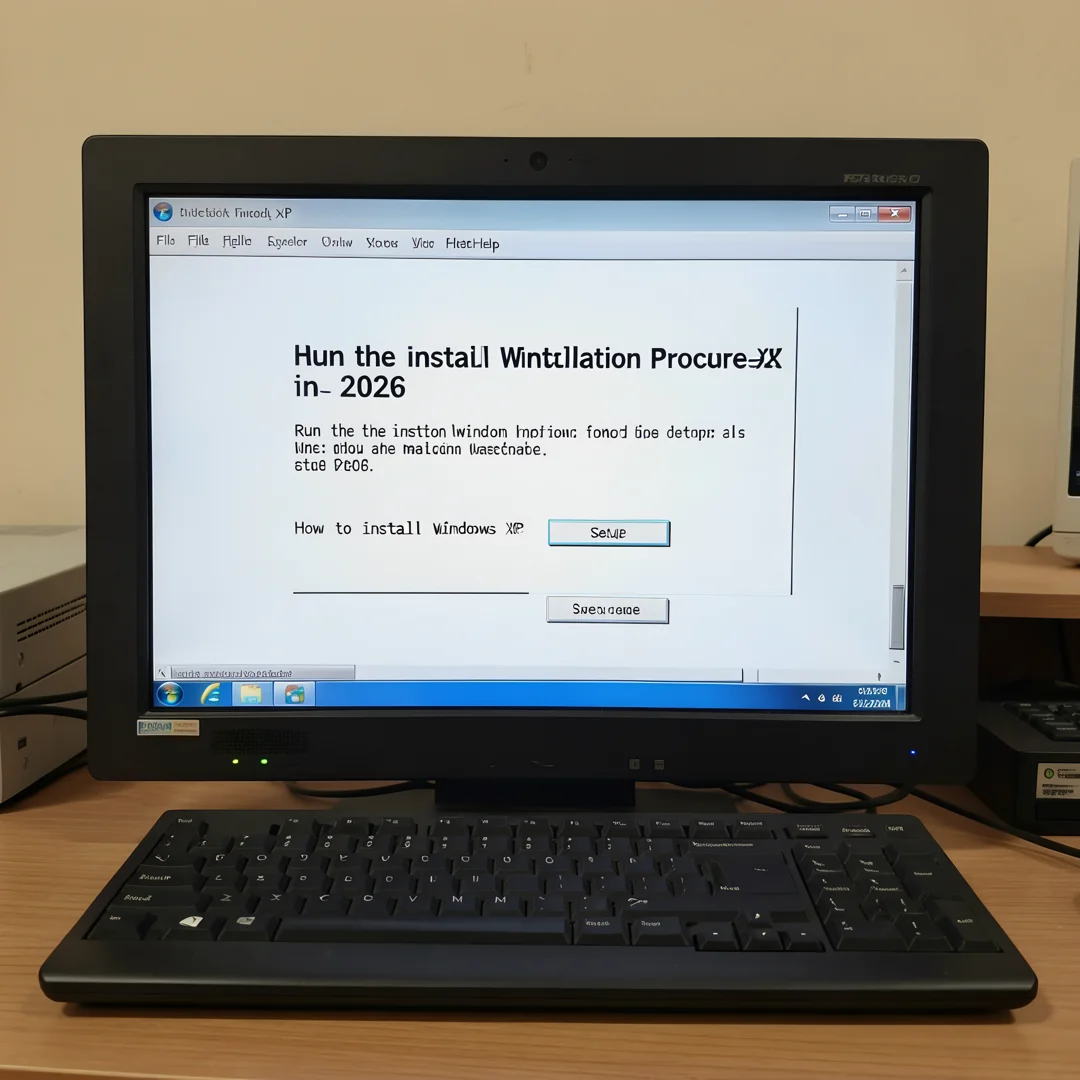
Step 4: Run the main installation procedure
Allow Setup to complete device detection, driver registration, and component installation. This phase formats remaining items, installs the network stack, and prepares the Start menu. Do not power off during this stage. Setup will reboot again and, for the first time, present the Windows XP desktop. If you are slipstreaming, install the storage and chipset drivers before this reboot if possible, so the system boots cleanly on the first attempt. Next, install Service Pack 3 from local media, because SP3 is the final and most compatible XP baseline.
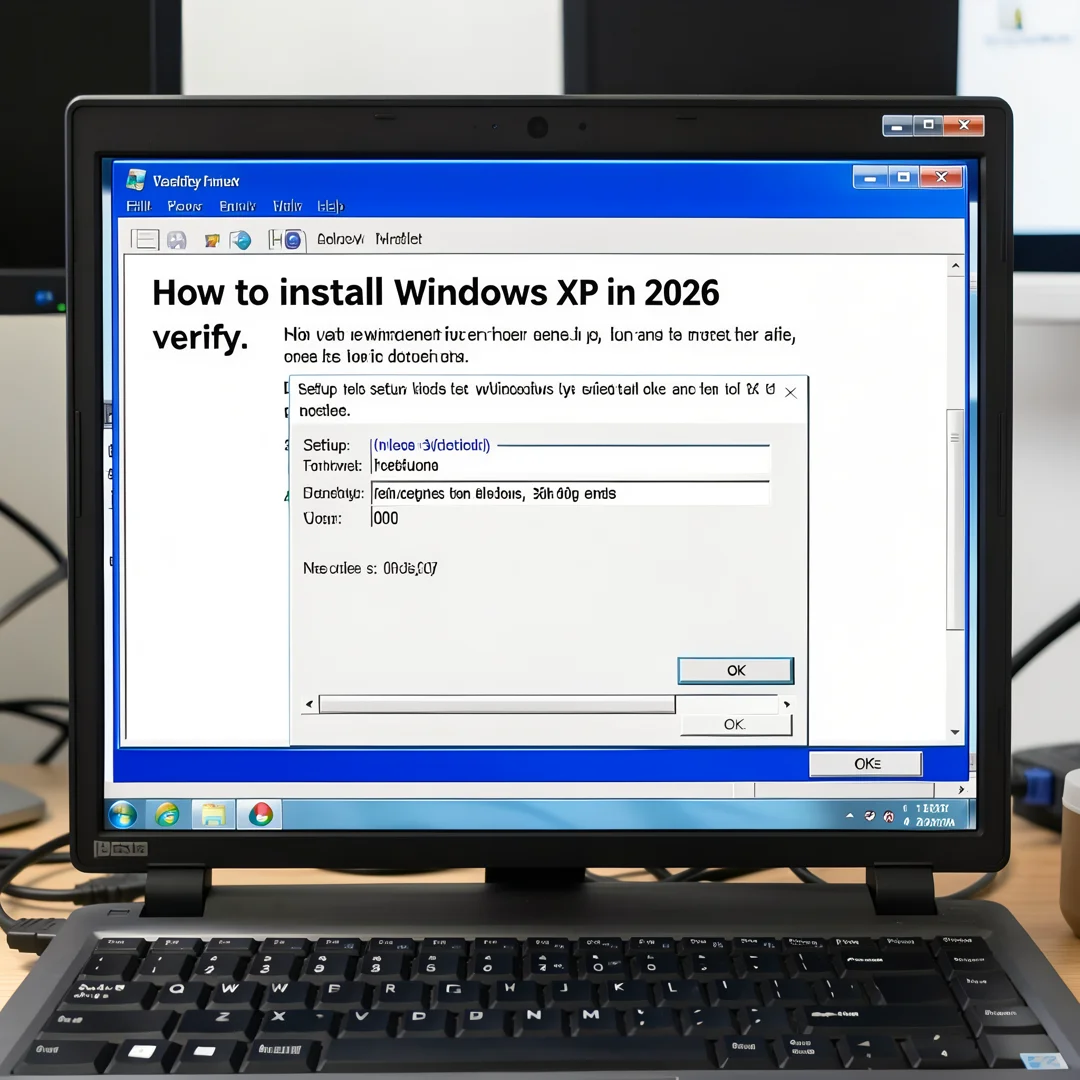
Step 5: Verify the installation
Check the essentials before declaring success:
- Confirm Device Manager shows no yellow warning icons; address any missing drivers with your staged files.
- Check that the correct storage controller and network adapter are recognized.
- Verify Windows Update is off or redirected, since the public servers no longer serve XP.
- Confirm the display resolution and graphics driver are correct.
- Run your target legacy application or hardware to prove the environment works.
Post-Installation
Finish the build with these administrative tasks.
- Harden before use. XP cannot be patched against modern threats. Disable unnecessary services, remove Flash and old Java, and set a strong administrator password.
- Isolate the network. Keep the machine off the internet. If it must connect, put it on a segmented VLAN behind a firewall with no outbound internet route.
- Snapshot or image the system. After a clean install and driver setup, take a VM snapshot or a disk image. Rebuilding XP from scratch in the future will be harder, not easier.
- Document the configuration. Record the product key, driver versions, BIOS settings, and isolated network details for the next administrator.
- Consider an alternative. Where the legacy app allows it, Windows 7, Windows 10 LTSC, or a ReactOS/Linux compatibility layer may run the software with fewer security liabilities.
Troubleshooting
Common failures and their fixes:
- “Setup did not find any hard disk drives.” The storage controller is unsupported. Switch BIOS to IDE/Legacy mode or press F6 and supply the driver.
- Blue screen during text-mode setup. Usually a RAM or chipset incompatibility on very new hardware. Reduce to one RAM stick, disable XMP/EXPO, or move to a virtual machine.
- Endless reboot loop after first restart. Boot order still points to the install media, or the active partition flag is wrong. Fix boot order and re-run Setup’s repair option.
- No network after install. Install the Ethernet driver from local media; the generic stack often misses modern NICs.
- Product key rejected. Verify the key matches the edition (Home vs. Professional) and that the media is unmodified.
FAQ. How long does it take to complete how to install Windows XP in 2026? A virtual-machine install typically takes 20 to 40 minutes; a physical install on older hardware takes 30 to 90 minutes, longer if you must hunt down storage drivers. Do you need prior Linux experience? No. The process uses.
You now have a complete workflow for How to install windows xp in 2026. Keep your system updated, monitor resource usage, and revisit this guide when software versions change.
Next steps: harden your server firewall, set up automated backups, and explore related tutorials linked above.