How to use google chrome multi — Juggling work, personal, and side-project accounts in one browser gets messy Learn more about the steps and the final checks.
Chrome profiles let you separate your browsing worlds—each with its own history, passwords, extensions, and settings. No more logging in and out or mixing your boss’s spreadsheets with your weekend plans. In this guide, you’ll get clear, step-by-step instructions to set up and switch between profiles effortlessly.
Introduction
Google Chrome is one of the most widely used web browsers in the world, and one of its most powerful yet underutilized features is the ability to create and manage multiple profiles. A Chrome profile is essentially a separate instance of the browser, complete with its own bookmarks, history, saved passwords, extensions, and settings. For anyone who uses the same computer for both work and personal tasks, or for families who share a single device, multi-profile support can be a game-changer.
This article explores How to use google chrome multi profiles with clear, practical guidance. Whether you are a student juggling several Google accounts, a professional managing multiple clients, or a parent trying to keep your browsing separate from your children’s, understanding how profiles work will help you stay organized and secure. The goal is not just to show you where the buttons are, but to explain why each step matters and how to build habits that keep your digital life tidy.
Many users never touch this feature simply because they do not know it exists. Others try it once, find it confusing, and revert to logging in and out of accounts manually. That is a mistake. With a few minutes of setup, Chrome multi-profiles can save you time, reduce accidental data leaks, and make your browser feel tailored to each part of your life. By the end of this guide, you will have a reliable system you can use every day.
Key Concepts
Before diving into the steps, it helps to understand the core ideas behind Chrome profiles. A profile in Chrome is not the same as a Google account, although the two are often linked. A profile is a local storage container on your computer. It holds your browser data: cookies, cache, extensions, themes, and settings. When you sign a Google account into a profile, that profile gains access to synced bookmarks, passwords, and history across devices. But you can also use a profile without signing in at all.
Each profile gets its own icon and name, which appear in the top-right corner of the browser window. You can switch between profiles instantly without closing windows. This is different from using Incognito mode, which is temporary and does not save anything. A profile persists until you delete it.
Understanding the fundamentals of How to use google chrome multi profiles helps you make informed decisions. For example, you might create one profile for work that signs into your corporate Google Workspace account and installs only productivity extensions. A second profile might be for personal use, signed into your Gmail and YouTube accounts, with social media extensions and your personal bookmarks. A third could be a “guest” or “shopping” profile that never signs in, used for one-off tasks or testing websites.
The key benefit is isolation. Data from one profile does not leak into another. Cookies, logins, and history stay separate. This prevents the common problem where you try to open a personal Google Drive link but Chrome keeps using your work account because you were last signed in there. It also improves privacy: advertisers tracking you in one profile cannot easily link that activity to another profile.
Finally, note that profiles are stored locally. If you use Chrome sync with a Google account, your bookmarks, passwords, and settings travel with that account, but the profile container itself (including which extensions are installed) does not automatically sync unless you enable sync for that profile. This distinction matters when you move to a new computer.
Deep Dive
Creating a new profile is straightforward, but managing multiple profiles well requires a bit of strategy. Let’s walk through the core steps, then explore best practices and common pitfalls.
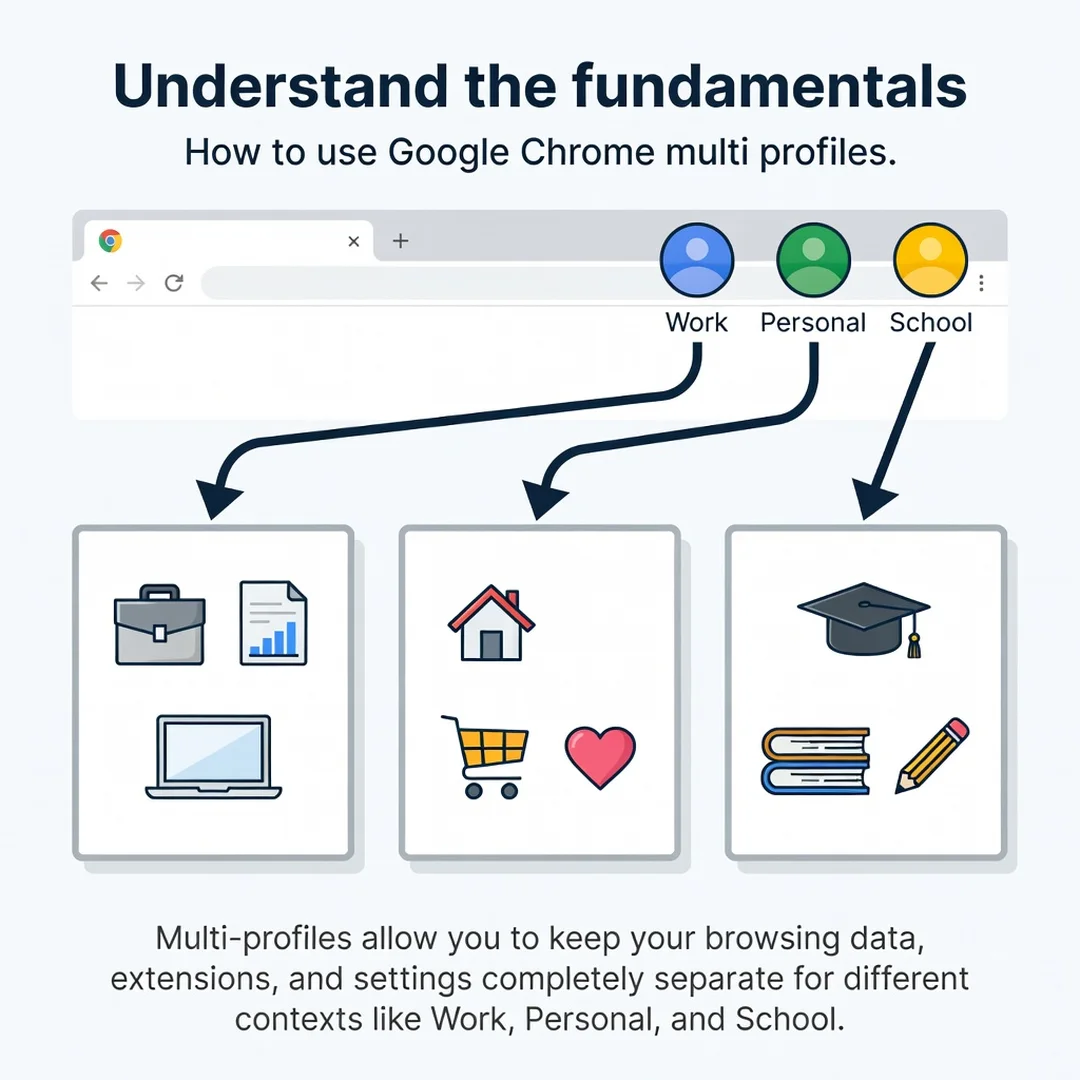
Step 1: Understand the fundamentals
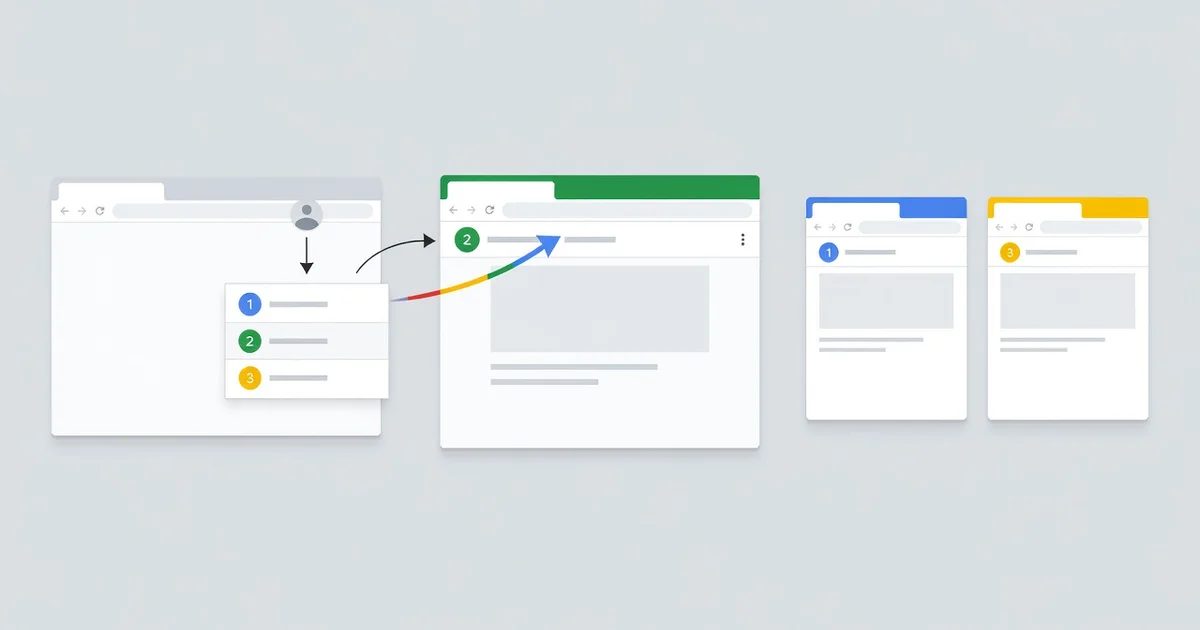
Open Google Chrome on your computer. In the top-right corner, you will see a circular icon or your profile picture. Click it. A menu appears showing your current profile and options like “Add,” “Manage Chrome profile,” and “Guest.” The “Add” option creates a new profile from scratch. The “Guest” mode is a temporary profile that disappears when you close all guest windows. For a permanent multi-profile setup, choose “Add.”
Chrome will then ask you to sign in to a Google account or continue without an account. You can decide per profile. For a work profile, sign in with your work email. For a personal profile, use your personal Gmail. For a shopping or testing profile, click “Continue without an account.” Give the profile a name and choose a color and icon so you can recognize it at a glance.
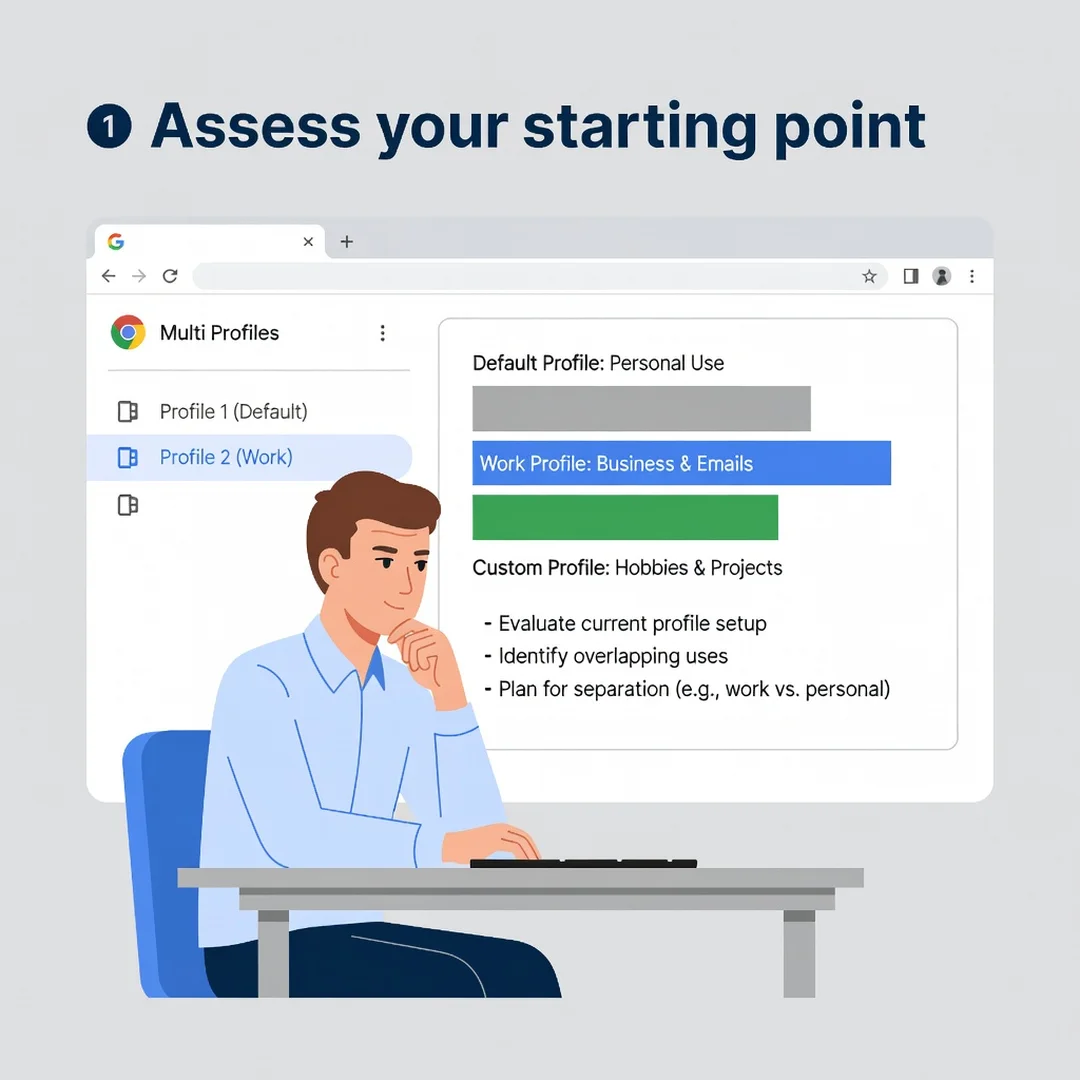
Step 2: Assess your starting point
Before creating more profiles, look at your current browsing habits. How many Google accounts do you regularly use? Do you share this computer with anyone else? Do you need separate sets of extensions for different tasks? Write down the distinct “identities” you need. Common setups include: Work, Personal, School, Side Hustle, and Guest. Avoid creating too many profiles at once; start with two or three and expand only if needed. Also check whether your current profile has important bookmarks or passwords you want to keep. You can copy bookmarks manually or rely on Chrome sync to move them to a new profile.
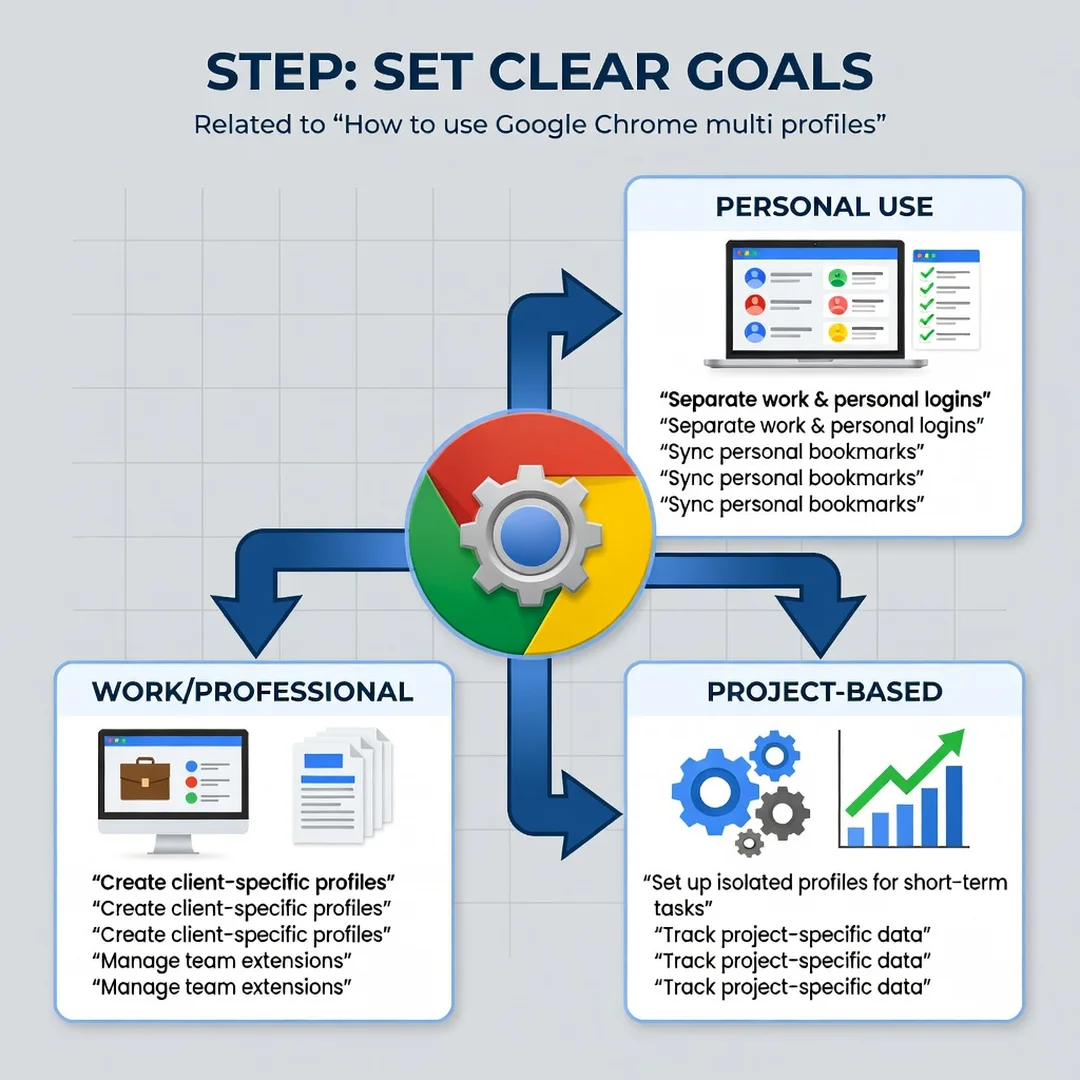
Step 3: Set clear goals
Define what each profile is for. For example, your “Work” profile goal might be: “Only work-related bookmarks, no social media, and sign in to company tools.” Your “Personal” profile goal: “Personal email, streaming services, and shopping.” Your “Guest” profile goal: “No saved data, used for quick searches or testing.” Clear goals prevent profile sprawl and make it obvious which profile to use for which task. They also help you decide which extensions to install where. A password manager extension, for instance, might be useful in all profiles, but a social media blocker might only belong in the work profile.
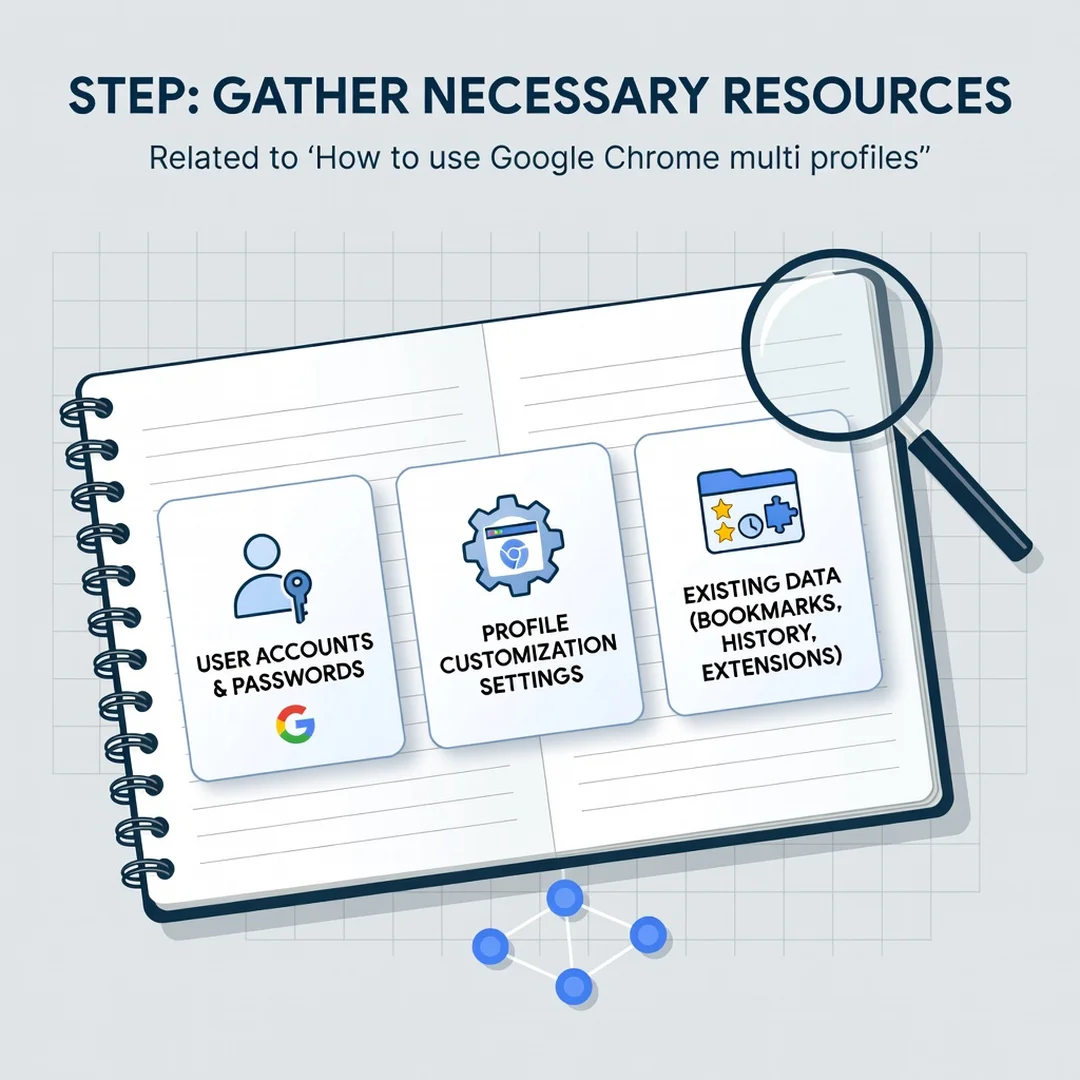
Step 4: Gather necessary resources
You need a computer with Google Chrome installed. That’s it. But to make the most of multi-profiles, gather a few things: your list of Google account credentials, a note of which extensions you want in each profile, and a plan for syncing. If you use Chrome sync, decide whether each profile should sync. Work profiles often should not sync personal data, and personal profiles may not want work bookmarks. You can toggle sync per profile in Settings. Also, consider creating a password manager if you do not already use one, because managing multiple accounts manually is error-prone.
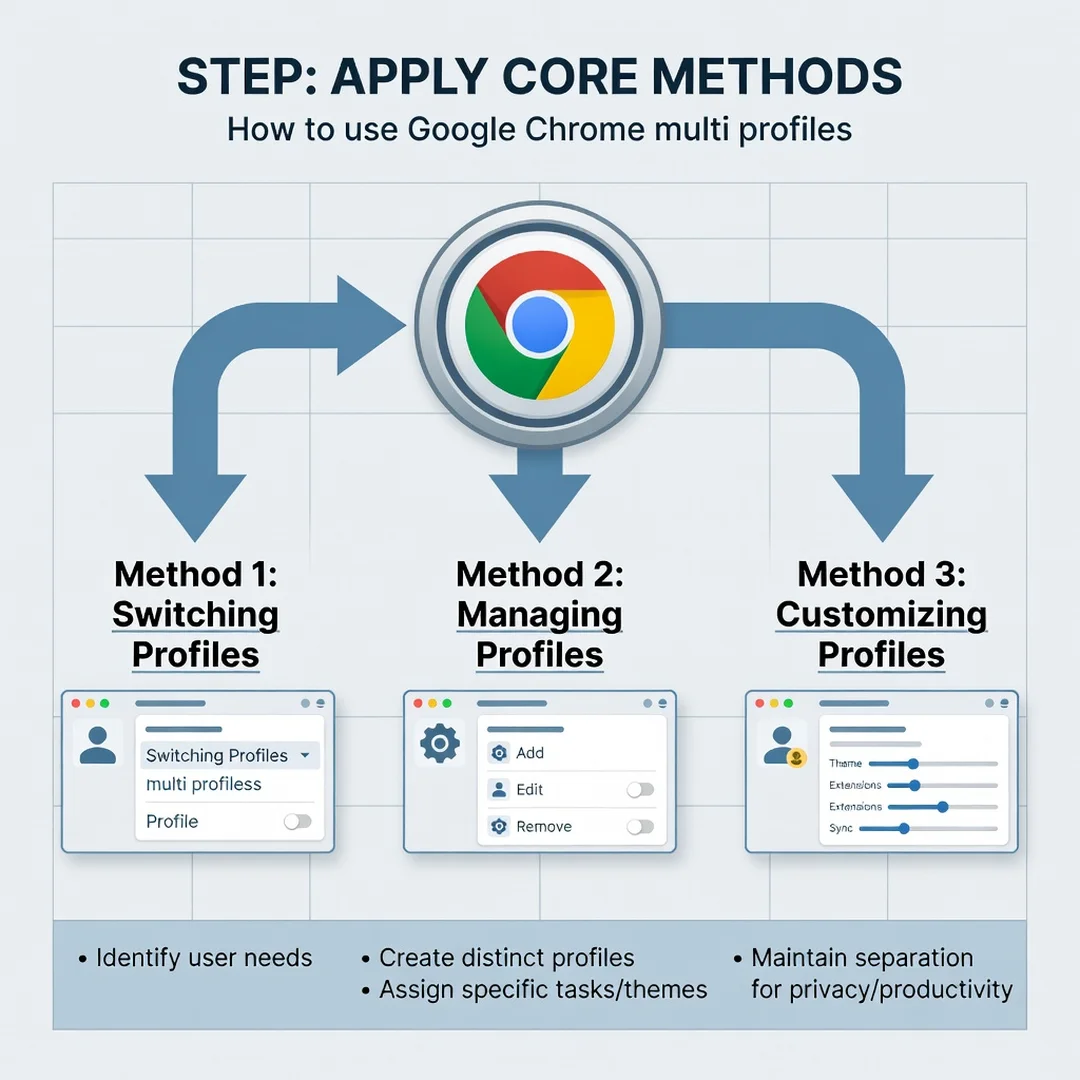
Step 5: Apply the core methods
Now create your profiles. Click the profile icon, then “Add,” and follow the prompts. Repeat for each identity. After creation, open each profile and customize it: set a unique theme color, install only the extensions you need, and sign in to the relevant Google account if desired. To switch profiles, click the profile icon and select another profile. A new window opens for that profile. You can also right-click a profile icon in the taskbar (on Windows) or dock (on macOS) to open a new window directly.
For advanced control, use the “Manage Chrome profile” option to rename profiles, change icons, or delete profiles you no longer need. If you want to open a link in a different profile, copy the link, switch profiles, and paste. Chrome does not yet support dragging a tab between profiles, so this manual step is normal.
Best Practices
- Name profiles clearly. Use labels like “Work – Acme Corp,” “Personal – Jane,” or “Shopping – No Login.” Vague names cause confusion later.
- Use distinct colors and icons. Blue for work, green for personal, orange for side projects. This visual cue helps you avoid typing personal passwords into a work profile.
- Limit extensions per profile. Every extension can see data in that profile. Keep work profiles lean and install only trusted tools.
- Do not sign into the same Google account in multiple profiles unless necessary. It can cause sync conflicts and confusion about which profile has which bookmarks.
- Use Guest mode for one-off tasks. If you just need to check a website without saving history, Guest mode is faster than creating a new profile.
- Back up important bookmarks. Export bookmarks from each profile periodically. Profiles can become corrupted, and local data can be lost.
- Review profiles monthly. Delete unused profiles to reduce clutter. Check that each profile still serves its purpose.
You now have a solid foundation for How to use google chrome multi profiles. Apply the best practices above and revisit this guide as your needs evolve.