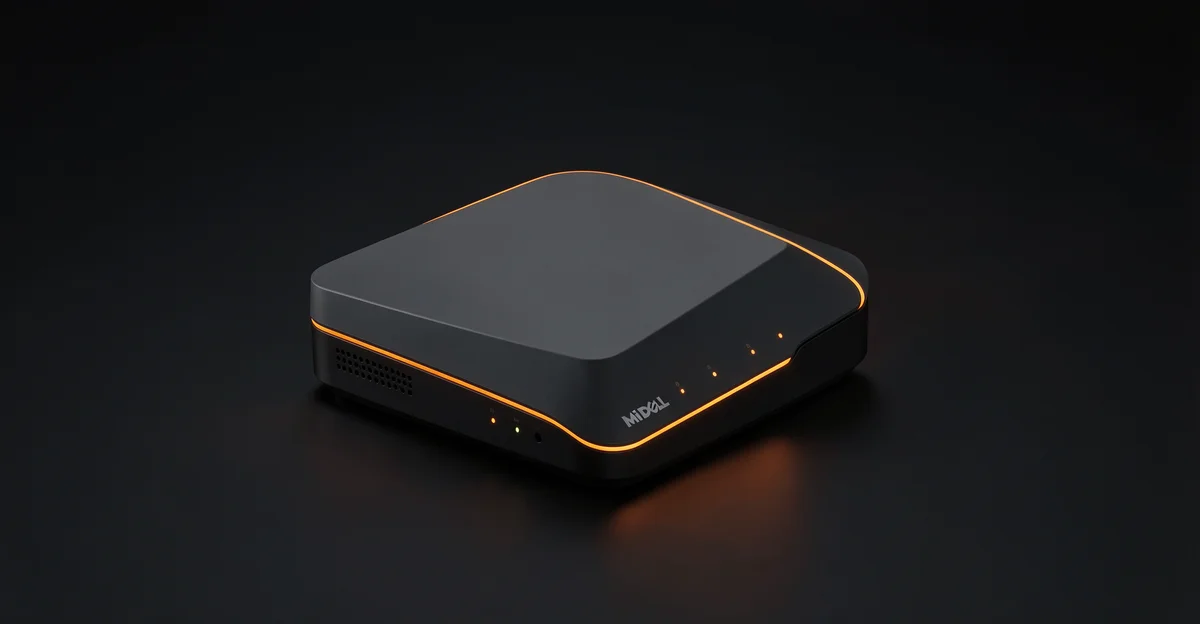
How to Install Ubuntu Server on — Turning a compact Dell mini PC into a capable home lab or small business Learn more about the steps and the final checks.
Whether you’re a beginner exploring your first server or an IT administrator deploying a lightweight node, this tutorial covers BIOS configuration, installation options, and post-install essentials. By the end, you’ll have a fully functional Ubuntu Server ready for hosting apps, files, and services.
Introduction
Ubuntu Server is one of the most widely deployed Linux distributions for servers, edge devices, and homelabs, and Dell mini PCs such as the OptiPlex Micro, Latitude, and Precision compact models are popular hosts for it. These small-form-factor machines offer desktop-class x86-64 processors, low power draw, and often come with multiple display outputs, gigabit Ethernet, and NVMe storage. This guide covers install ubuntu server on mini pc dell in practical, step-by-step detail, and it is written for both beginners who have never touched a Linux terminal and IT administrators who want a repeatable deployment checklist. You will learn how to verify hardware compatibility, create installation media, run the Ubuntu Server installer, and apply sensible post-installation hardening. Always verify software compatibility with your hardware architecture (ARM64 vs x86), because the vast majority of Dell mini PCs are x86-64 while a few ARM-based alternatives and single-board computers are not. Similarly, keeping your operating system updated before installation prevents dependency conflicts later, so updating your existing environment or your installation media is never wasted effort.
The instructions below assume you are installing a current Ubuntu Server LTS release, such as 22.04 LTS or 24.04 LTS, on a Dell mini PC with UEFI firmware. Where Dell-specific settings matter, such as Secure Boot, TPM, or RAID-on mode, they are called out explicitly. By the end, you should have a bootable, networked Ubuntu Server that you can administer over SSH with confidence.
Prerequisites
Before you begin, gather the following hardware and information. Missing a single item, such as a USB drive that is too small, can stall the installation midway.
- A Dell mini PC (OptiPlex Micro, Latitude 5000/7000 series, Precision 3000 series, or similar) with a 64-bit x86-64 CPU. Confirm this by checking the Dell service tag on the support website.
- At least 4 GB of RAM; 8 GB or more is recommended for services such as containers or databases.
- At least 25 GB of free storage on the internal SSD or NVMe drive.
- A USB flash drive of 4 GB or larger, or 8 GB if you plan to add extra tooling to the installer.
- A wired Ethernet connection is strongly preferred, though Wi-Fi can work on supported adapters.
- A monitor with HDMI or DisplayPort, plus a USB keyboard, for the initial installation. Dell micro PCs often use DisplayPort or HDMI; check your model.
- Access to the Dell BIOS/UEFI setup utility, usually by pressing F2 at boot.
On the software side, download the Ubuntu Server ISO from the official Ubuntu website. Use the LTS release for long-term support. You will also need a tool to write the ISO to USB, such as Rufus or balenaEtcher on Windows, or the dd command on Linux and macOS. If you plan to automate the install, familiarize yourself with cloud-init or the Ubuntu Autoinstall format, though this guide focuses on the interactive path.
Finally, back up any data on the target machine. Installing Ubuntu Server will erase the internal drive unless you explicitly configure dual boot. Also note your network details: DHCP is fine for most cases, but static IP configuration requires the subnet, gateway, and DNS addresses.
Preparation
Preparation is where most failed installations are prevented. Start by verifying that your Dell mini PC is compatible with the Ubuntu release you downloaded. Most Dell mini PCs use Intel or AMD x86-64 processors, which match the standard Ubuntu Server ISO. If you somehow have an ARM-based device, you must download the ARM64 ISO instead. This architecture distinction matters and is a common source of confusion. Always verify software compatibility with your hardware architecture (ARM64 vs x86), particularly when you add third-party packages, Docker images, or monitoring agents later.
Next, update the Dell BIOS or UEFI firmware if an update is available. Dell publishes firmware updates through Dell Command Update, SupportAssist, or a manual download from the support site. Running the latest firmware avoids ACPI, power management, and NVMe compatibility bugs. While the operating system is not yet installed, you can still update firmware from the Dell one-time boot menu or from a temporary Windows installation if present. Keeping your operating system updated before installation prevents dependency conflicts—on the Ubuntu side, this means using the latest point release of the LTS rather than an older ISO that may have outdated package indexes.
Create the installation USB drive. Download the ISO, then use your chosen tool to write it. In Rufus, select the ISO in DD mode if given the option, as this creates a more faithful image. In balenaEtcher, the default behavior is correct. After writing, insert the USB drive into the Dell mini PC.
Enter the Dell BIOS/UEFI by pressing F2 at the Dell logo. Confirm these settings:
- Boot mode is UEFI, not Legacy.
- Secure Boot is either disabled or set to allow the Ubuntu shim. For simplicity, disable Secure Boot during installation; you can re-enable it later with signed kernels.
- SATA operation is set to AHCI or NVMe mode, not RAID On, unless you intend to use Dell’s software RAID. RAID On hides the drive from the Ubuntu installer.
- Boot order places the USB drive first.
Save and exit. The machine should boot into the Ubuntu Server installer. If it does not, revisit the boot order and the USB image.
Installation Steps
The following steps walk through the canonical installation path. Read each step fully before executing it, and keep notes if you are deploying multiple machines.
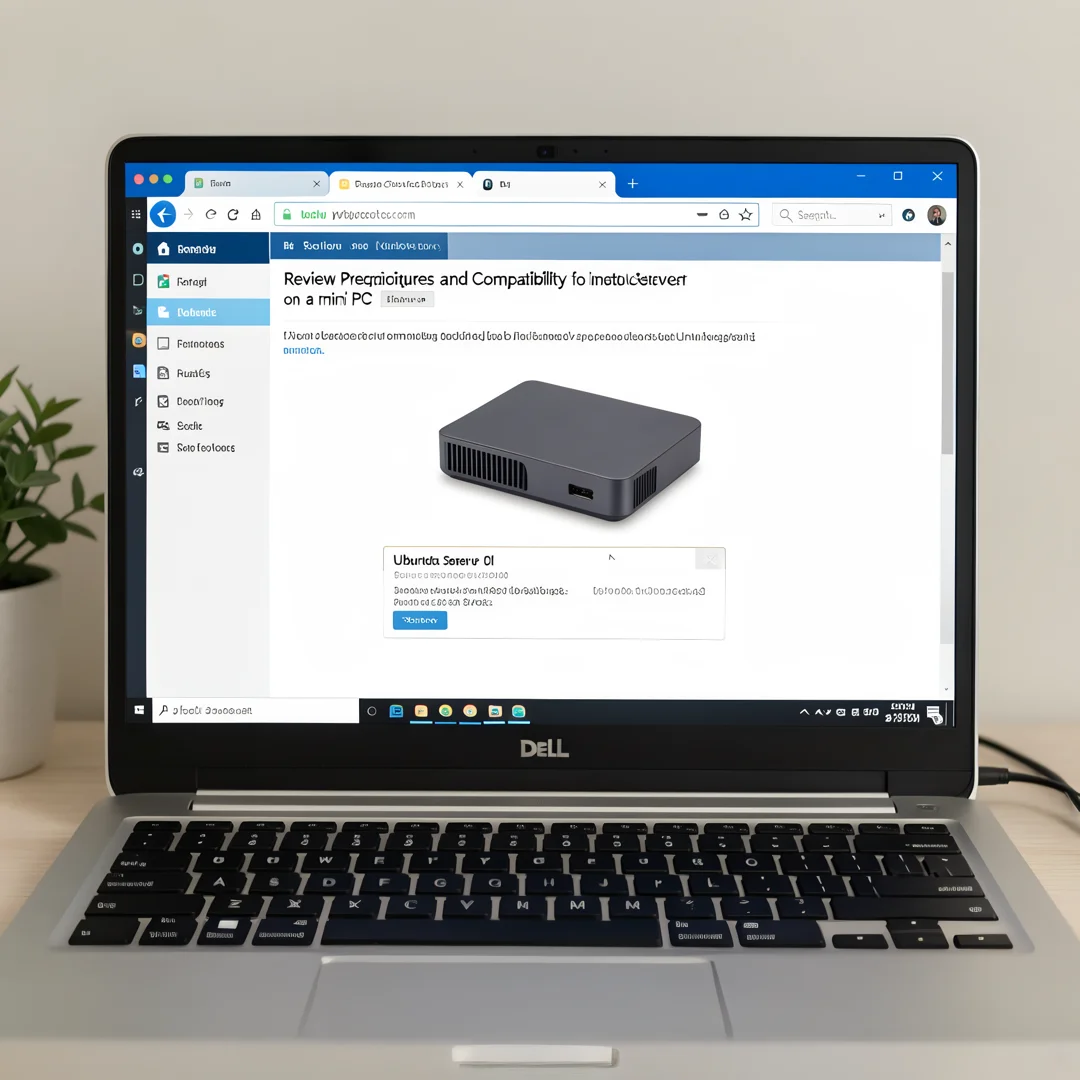
Step 1: Review prerequisites and compatibility
Confirm the CPU architecture is x86-64, the RAM and disk meet the minimums, and the ISO matches. Check the Dell model’s support page for known Linux compatibility notes. Verify the USB drive is detected in the BIOS boot menu. If you are using a network install, confirm the NIC is recognized. This step is quick but prevents hours of rework.
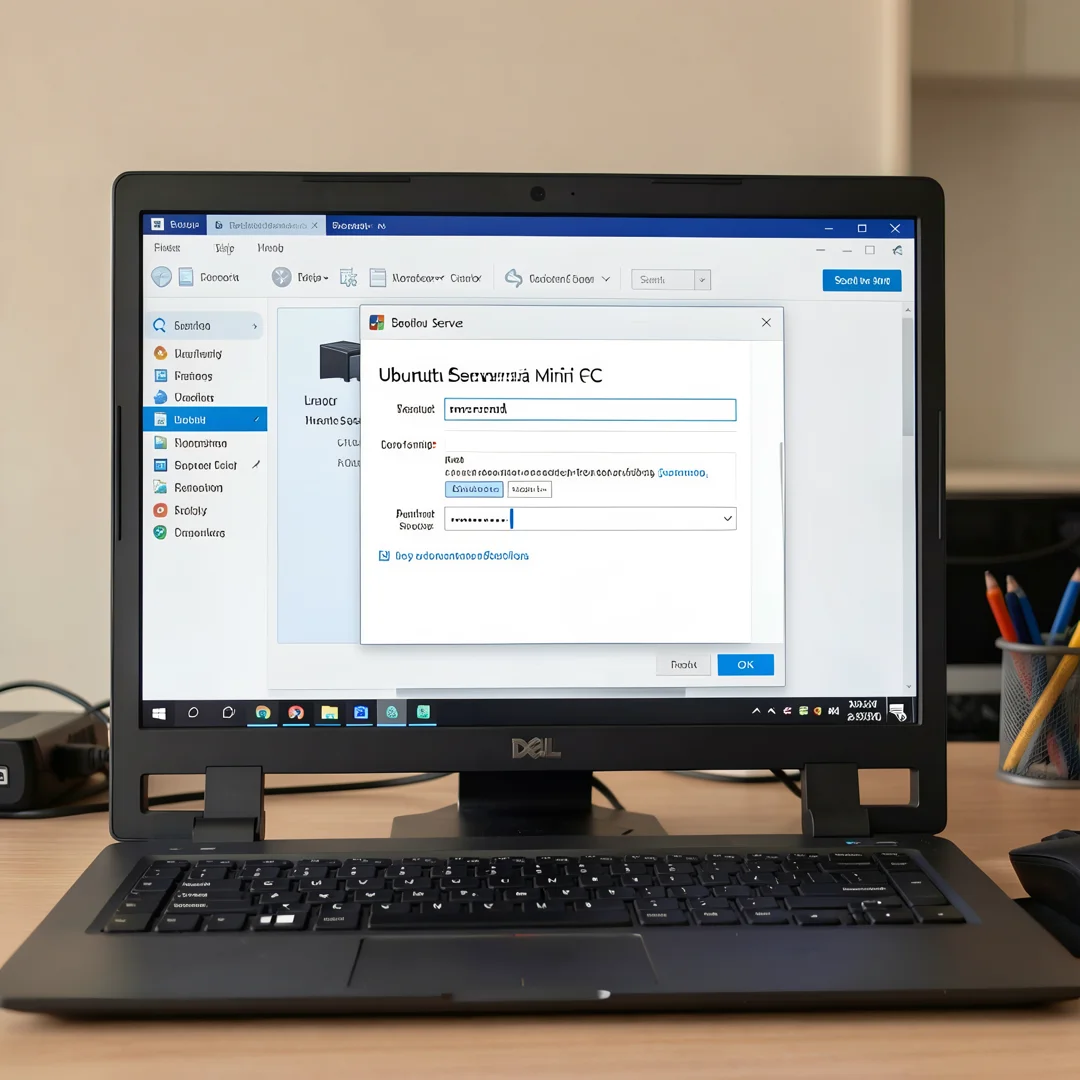
Step 2: Prepare the environment
Boot from the USB drive. At the Ubuntu Server boot menu, select the default installation option. Choose your language and keyboard layout. If the installer prompts for a network connection, connect the Ethernet cable. If you plan to use Wi-Fi, select the appropriate interface and enter credentials; wired is more reliable for servers. The installer will detect the internal storage. If no disk appears, return to the BIOS and correct the SATA or RAID setting. Also, if you have existing partitions to preserve, decide now between guided and manual partitioning.
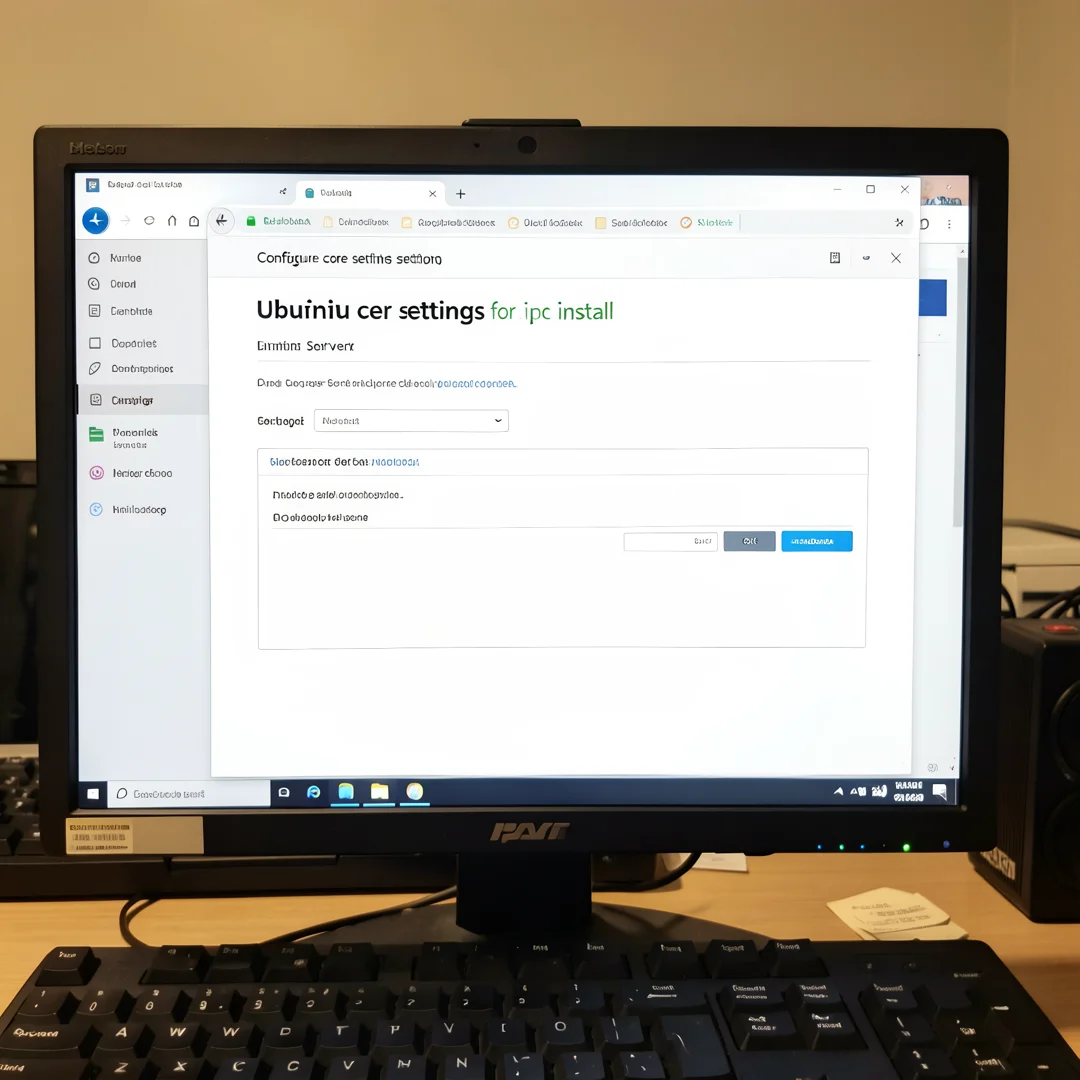
Step 3: Configure core settings
Set the hostname, for example dell-mini-01. Create a non-root administrative user with a strong password; root login is disabled by default. Configure the storage layout: the guided option using the entire disk with LVM is a good default for beginners and administrators alike. LVM enables snapshots and easier resizing. Choose the OpenSSH server option so you can administer the machine remotely. Optionally select additional snaps or packages, but keep the base install minimal for a cleaner system. Set the time zone correctly; this affects logs and scheduled tasks. If prompted for an Ubuntu Pro token, you can skip it and attach later.
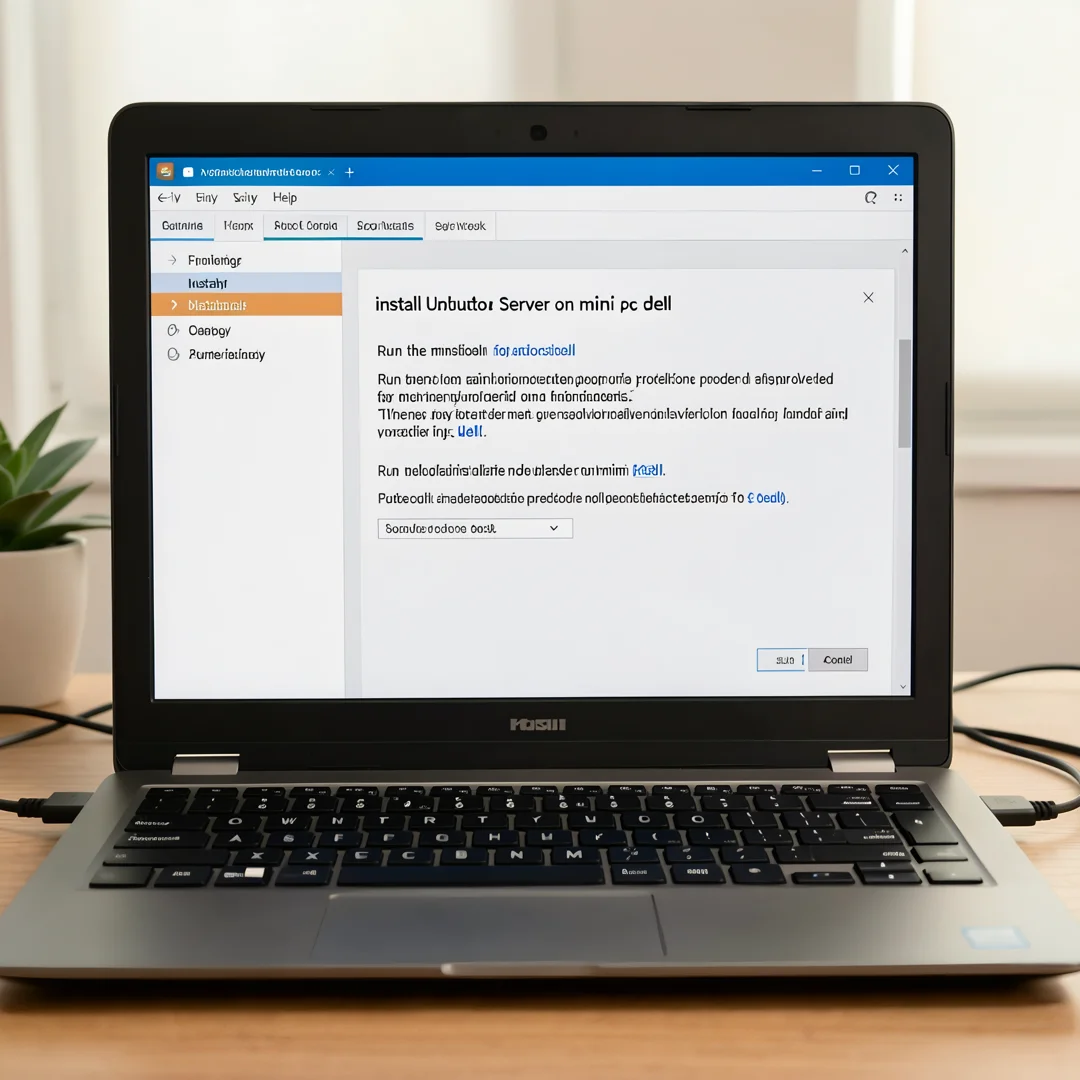
Step 4: Run the main installation procedure
Confirm the summary and start the installation. The installer will partition the disk, copy files, install the kernel, and configure GRUB. This is the longest phase and typically takes five to twenty minutes on a modern NVMe drive in a Dell mini PC. Do not remove the USB drive or power off the machine. If the installation fails at this stage, the logs are available on the installer console. After the file copy completes, the installer removes unnecessary packages and reboots. Remove the USB drive when prompted so the system boots from the internal disk.
Step 5: Verify the installation
After reboot, log in with the user you created. Run a few commands to verify health:
uname -aconfirms the kernel and architecture.ip aorip addrshows network interfaces and addresses.lsblklists block devices and confirms the disk layout.systemctl status sshverifies that SSH is running.df -hshows filesystem usage.
From another machine, try SSH into the server. If SSH fails, check the firewall and the SSH service. At this point the base installation is complete and verified.
Step 6: Configure post-install options
Update the package index and apply upgrades with sudo apt update && sudo apt upgrade -y. Configure a static IP if required by editing the Netplan YAML under /etc/netplan/ and running sudo netplan apply. Set up a firewall with UFW: allow SSH, then enable it. Install useful tools such as htop, curl, and git. Configure automatic security updates with unattended-upgrades. Add your SSH public key to ~/.ssh/authorized_keys and disable password authentication if you want stronger security. Finally, consider registering the machine with Ubuntu Pro for extended security maintenance. These steps transform a freshly installed system into a maintainable server.
Post-Installation
Once Ubuntu Server is running, a few administrative tasks improve reliability and security. First, update the system fully. Keeping your operating system updated before installation prevents dependency conflicts, and the same principle applies after installation: run updates before adding application stacks like LAMP, Docker, or Kubernetes. Use sudo apt update and sudo apt full-upgrade.
Configure remote access securely. Generate an SSH key pair on your workstation, copy the public key to the server, test passwordless login, then edit /etc/ssh/sshd_config to set PasswordAuthentication no and PermitRootLogin no. Restart SSH and confirm you can still log in.
Set the hostname and time zone if you skipped them earlier. Configure NTP with timedatectl. Set up monitoring; simple tools such as glances or netdata work well on mini PCs. Enable automatic security updates by checking /etc/apt/apt.conf.d/20auto-upgrades. Create a backup strategy for configuration files and data, since mini PCs often run single-disk configurations without redundancy.
If the Dell mini PC has a TPM, consider using it for disk encryption via LUKS. If you left Secure.
You now have a complete workflow for install ubuntu server on mini pc dell. Keep your system updated, monitor resource usage, and revisit this guide when software versions change.
Next steps: harden your server firewall, set up automated backups, and explore related tutorials linked above.