In today’s digital age, managing passwords securely is crucial for maintaining the integrity of your system. If you’ve ever found yourself locked out of your Ubuntu account, knowing how to reset Ubuntu user password from terminal can be a lifesaver. This guide will walk you through the necessary steps to regain access to your account, whether you’re resetting your own password or assisting another user. Understanding this process not only empowers you to troubleshoot effectively but also enhances your overall Linux skills.
Resetting a user password in Ubuntu is a straightforward process, but it requires some familiarity with the terminal and superuser privileges. This article will provide you with a comprehensive understanding of the commands needed, including the essential passwd username command. Additionally, you will learn how to navigate recovery mode if you’ve forgotten your password entirely. By mastering these techniques, you can ensure that you are always in control of your system’s access.
Throughout this article, you will discover the importance of password complexity and how it impacts your system’s security. We will guide you through the steps to reset a password effectively, including the prompts you will encounter and the requirements for your new password. By the end of this guide, you will not only know how to reset Ubuntu user password from terminal, but also appreciate the significance of maintaining strong, secure passwords for your Ubuntu system.
Step-by-Step Tutorial
Step 1: Access the Terminal
- Press
Ctrl+Alt+Tsimultaneously on your keyboard. This is the quickest way to open the terminal window. - If you prefer using the graphical interface, click on the “Show Applications” button located at the bottom left corner of your screen.
- In the search bar that appears, type ‘Terminal’. You should see the Terminal application icon appear in the results.
- Click on the Terminal icon to open the terminal window.
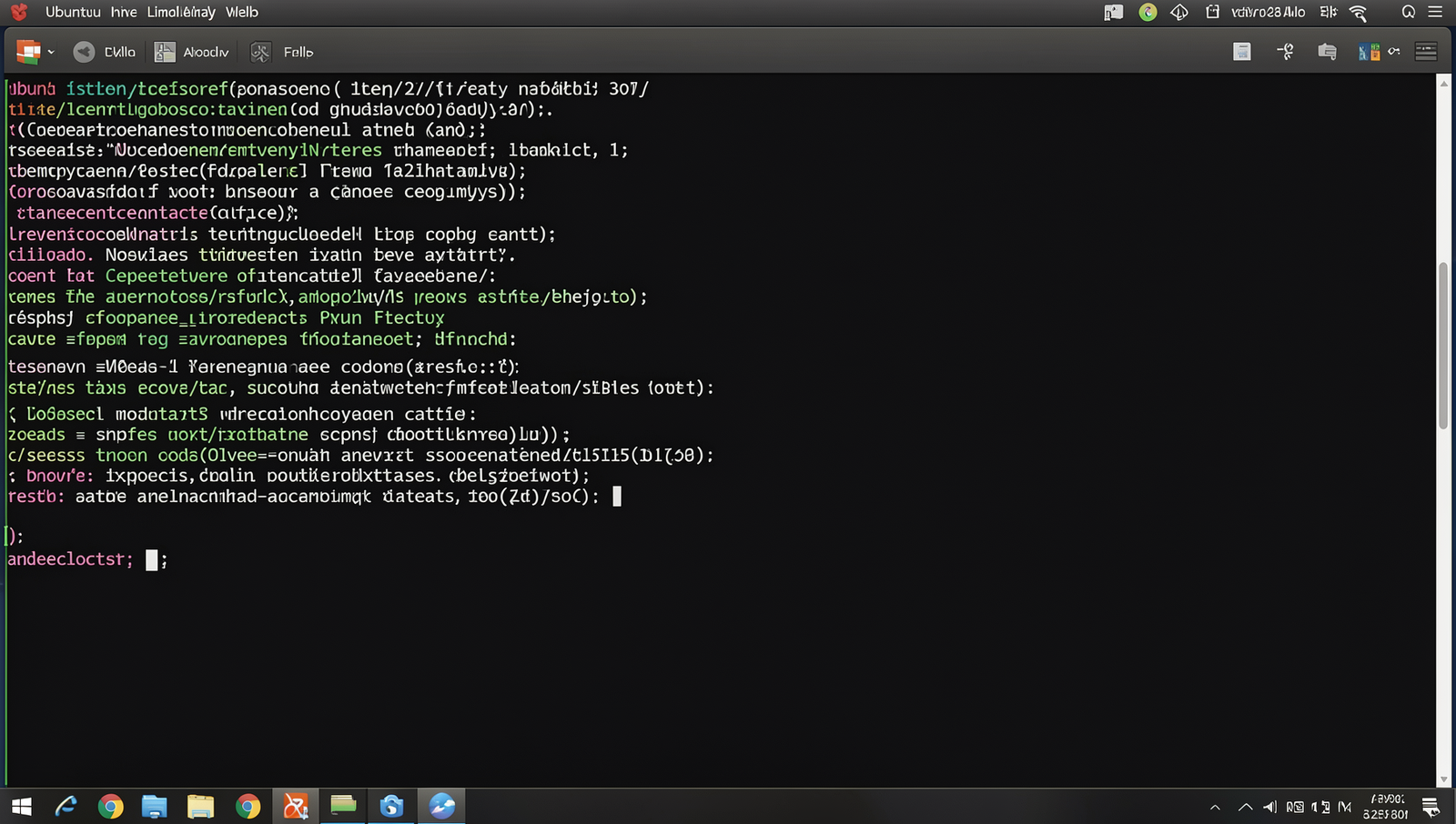
Once the terminal window opens, you will have a command line interface where you can enter commands. Make sure you have administrative privileges to reset the password. Familiarize yourself with basic terminal commands to navigate effectively.
Tip: Using the keyboard shortcut is the fastest way to access the terminal.
Warning: Ensure you have the necessary permissions to reset the password.
Troubleshooting & Verification
Ensure you have administrative privileges to reset the password. If the terminal does not open, try using the keyboard shortcut Ctrl + Alt + T or access it through the applications menu.
Step 2: Enter Recovery Mode
- Restart your computer. You can do this by selecting the restart option from your current operating system or by pressing the physical reset button on your machine.
- As your computer begins to boot, watch for the GRUB menu. If it does not appear, you may need to hold down the
Shiftkey during the boot process to make it visible. - Once the GRUB menu is displayed, use the arrow keys to navigate to the option labeled ‘Advanced options for Ubuntu’ and press
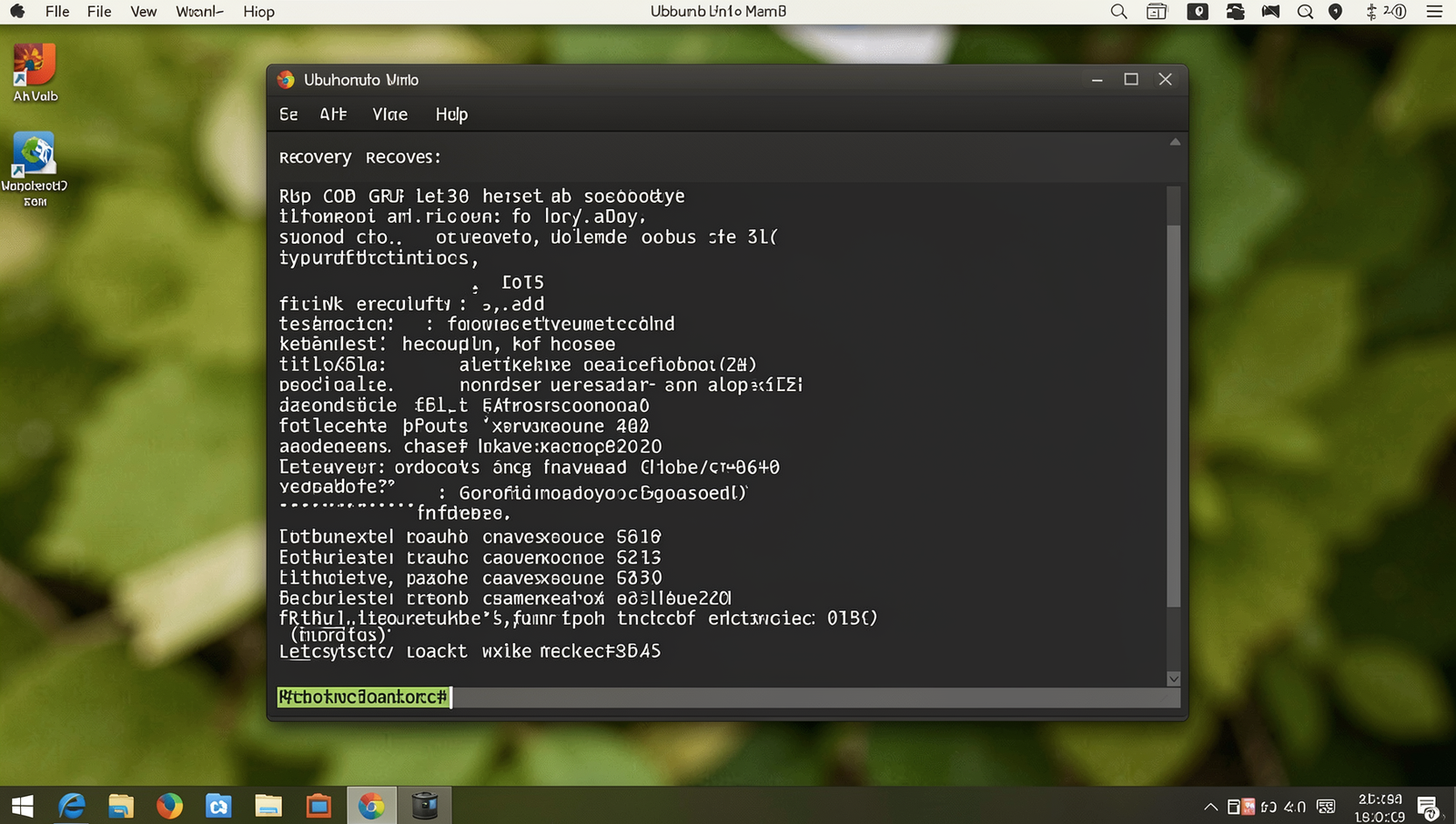
Enter. - In the next menu, you will see a list of available kernel versions. Select the one that includes ‘(recovery mode)’ next to it and press
Enter. - The recovery menu will now appear, offering several options for system recovery and maintenance.
Tips: If the GRUB menu does not appear, try pressing Esc or Shift during the boot process. Additionally, make a note of the kernel version you are using for future reference.
Warnings: Ensure that you select the correct kernel version with recovery mode to avoid any issues during the recovery process.
Troubleshooting & Verification
If you cannot access Recovery Mode, ensure your system is fully updated. Check your GRUB settings to confirm Recovery Mode is enabled. If issues persist, consider using a live USB to reset the password.
Step 3: Drop to Root Shell Prompt
- After booting your system, you will see the GRUB menu. Use the arrow keys to navigate.
- Select the recovery mode option for your Ubuntu installation. This is usually labeled with the kernel version followed by “(recovery mode)”.
- Once in the recovery menu, scroll down to find the option labeled ‘Drop to root shell prompt’.
- Press
Enterto select this option. You will be presented with a command line prompt that has root access, indicated by a#symbol. - Before making any changes, it is important to ensure that the filesystem is writable. Type the following command and press
Enter:
mount -o remount,rw /Now you can proceed to reset the user password. Remember to be cautious with any commands you execute, as you have full system access.
Troubleshooting & Verification
Ensure you have access to the root shell prompt by pressing Ctrl + Alt + F1 to F6. Verify your changes by rebooting and attempting to log in with the new password.
Step 4: Reset the User Password
- In the terminal, type the command
passwd username, replacing ‘username’ with the actual username of the account you want to reset.
- Press
Enter. You will be prompted to enter a new password for the user. - Type the new password. Make sure to use a mix of letters, numbers, and special characters to create a strong password.
- Press
Enteragain to confirm the new password. You should see a message stating ‘password updated successfully’. - It is advisable to write down the new password temporarily until you remember it, but ensure it is stored securely.
Warning: Make sure the new password is strong and secure. Do not forget the new password you have set, as it will be required to log in to the account.
Troubleshooting & Verification
If the password reset fails, ensure you are in the correct user account and have administrative privileges. Verify the new password by logging in. Check for typos and ensure the terminal session has not timed out.
Step 5: Reboot the System
- After successfully resetting the password, type
exitto leave the root shell.
- In the recovery menu, use the arrow keys to navigate to the option labeled ‘Resume’.
- Press
Enterto select ‘Resume’ and boot the system into normal mode. - Wait for the system to reboot completely.
- Once the login screen appears, enter your username and the new password you just set.
It is advisable to test the new password immediately after logging in to ensure it works correctly. Additionally, keep your system updated to avoid any security vulnerabilities. Remember to log in with the correct username and the new password to access your account successfully.
Troubleshooting & Verification
After rebooting, ensure you can log in with the new password. If issues persist, verify that the correct user account was modified. Additionally, check for any error messages during the password reset process for further clues.
Conclusion
In summary, learning how to reset Ubuntu user password from terminal is a valuable skill that can save you time and frustration. By accessing the recovery mode, you can easily reset your password using simple terminal commands. This method not only provides a quick solution but also reinforces your understanding of the Ubuntu operating system and its command-line interface.
After successfully resetting your password, consider exploring additional security measures, such as enabling two-factor authentication or regularly updating your passwords. Familiarizing yourself with terminal commands will further enhance your proficiency in managing your Ubuntu system effectively.
Frequently Asked Questions
How do I reset a user password in Ubuntu from the terminal?
To reset a user password in Ubuntu from the terminal, you need to access the terminal and use the passwd command. First, open the terminal and type sudo passwd username, replacing “username” with the actual username of the account. You will be prompted to enter a new password twice for confirmation. If you have the necessary permissions, the password will be updated successfully. Ensure you choose a strong password to enhance security.
What if I forget my username in Ubuntu?
If you forget your username in Ubuntu, you can retrieve it by accessing the terminal. If you can log in as another user with sudo privileges, type cut -d: -f1 /etc/passwd to list all usernames on the system. Alternatively, if you cannot log in, you may need to boot into recovery mode. From there, you can access the root shell and view the contents of the /etc/passwd file to find your username.
Can I reset the password without knowing the current one?
Yes, you can reset the password without knowing the current one by using recovery mode. To do this, reboot your system and hold the Shift key to access the GRUB menu. Select the recovery mode option, then choose “Drop to root shell prompt.” From there, you can use the passwd username command to set a new password for the user account. This method requires physical access to the machine and is typically used for recovery purposes.
Is it safe to reset a password from the terminal?
Resetting a password from the terminal can be safe if done correctly and with proper permissions. It is important to ensure that you are the authorized user or have administrative privileges. Always use strong, unique passwords to enhance security. However, if you are in a shared environment, be cautious, as others may see your commands. Additionally, avoid using this method on systems that contain sensitive information without proper authorization, as it may violate security policies.