

What Is Ui and a Theme — Every time you open an app or visit a website, you’re interacting with a user Learn Learn more about the steps and the final checks.
Equally important is the theme, the visual styling that gives your UI its personality. A theme controls colors, fonts, and spacing, shaping how users feel about your product. In this guide, we’ll break down what is UI and a theme, why they matter, and how to use both to create polished, user-friendly designs.
Introduction
If you have spent any time around websites, apps, or digital products, you have almost certainly heard the terms “UI” and “theme.” They get thrown around constantly in design meetings, developer documentation, and product reviews, yet many people use them interchangeably or vaguely. That confusion matters, because UI and themes serve different purposes, and mixing them up can lead to poor decisions about how a product looks, feels, and functions. This article explores what is UI and a theme with clear, practical guidance, so you can talk about them confidently and use them correctly in your own projects.
The short version: UI stands for user interface, which is the entire set of screens, controls, and interactive elements a person uses to operate a piece of software. A theme is a specific visual and stylistic treatment — colors, fonts, spacing, icon styles, and sometimes sounds — applied on top of that interface. Think of UI as the structure and mechanics of a car’s dashboard, and the theme as the paint job, upholstery, and trim package. You can change the theme without redesigning the dashboard, and you can redesign the dashboard while keeping the same theme.
Understanding the fundamentals of what is UI and a theme helps you make informed decisions, whether you are a business owner commissioning an app, a marketer managing a website, or a curious user trying to customize your phone. Reliable information and consistent habits lead to better long-term outcomes. By the end of this guide, you will know exactly what each term means, how they relate to each other, and how to apply that knowledge in practical situations.
Key Concepts
Before diving deeper, it helps to nail down the core vocabulary. These terms appear everywhere in design and development, and a shared understanding prevents miscommunication.
User Interface (UI)
The user interface is everything a person interacts with when using a digital product. That includes:
- Buttons, links, and form fields
- Menus, navigation bars, and tabs
- Typography and text hierarchy
- Images, icons, and illustrations
- Micro-interactions like hover effects and loading spinners
- Layout and spacing that determine where elements sit on a screen
UI is both visual and functional. A well-designed interface is not just attractive; it is intuitive, accessible, and responsive to different screen sizes. The goal of UI design is to make the interaction between human and machine as smooth and error-free as possible.

Theme
A theme is a predefined collection of visual styles that can be applied consistently across an interface. It typically defines:
- Color palettes (primary, secondary, background, text, accent)
- Typography choices (font families, sizes, weights)
- Component styling (button shapes, border radii, shadows)
- Spacing and layout tokens
- Iconography style
- Sometimes sound effects or animation styles
Themes enable consistency and efficiency. Instead of styling each button, card, and header individually, a developer applies a theme, and all those elements inherit the same visual rules. This is why you can switch your phone from light mode to dark mode instantly — the underlying UI stays the same, but the theme changes.
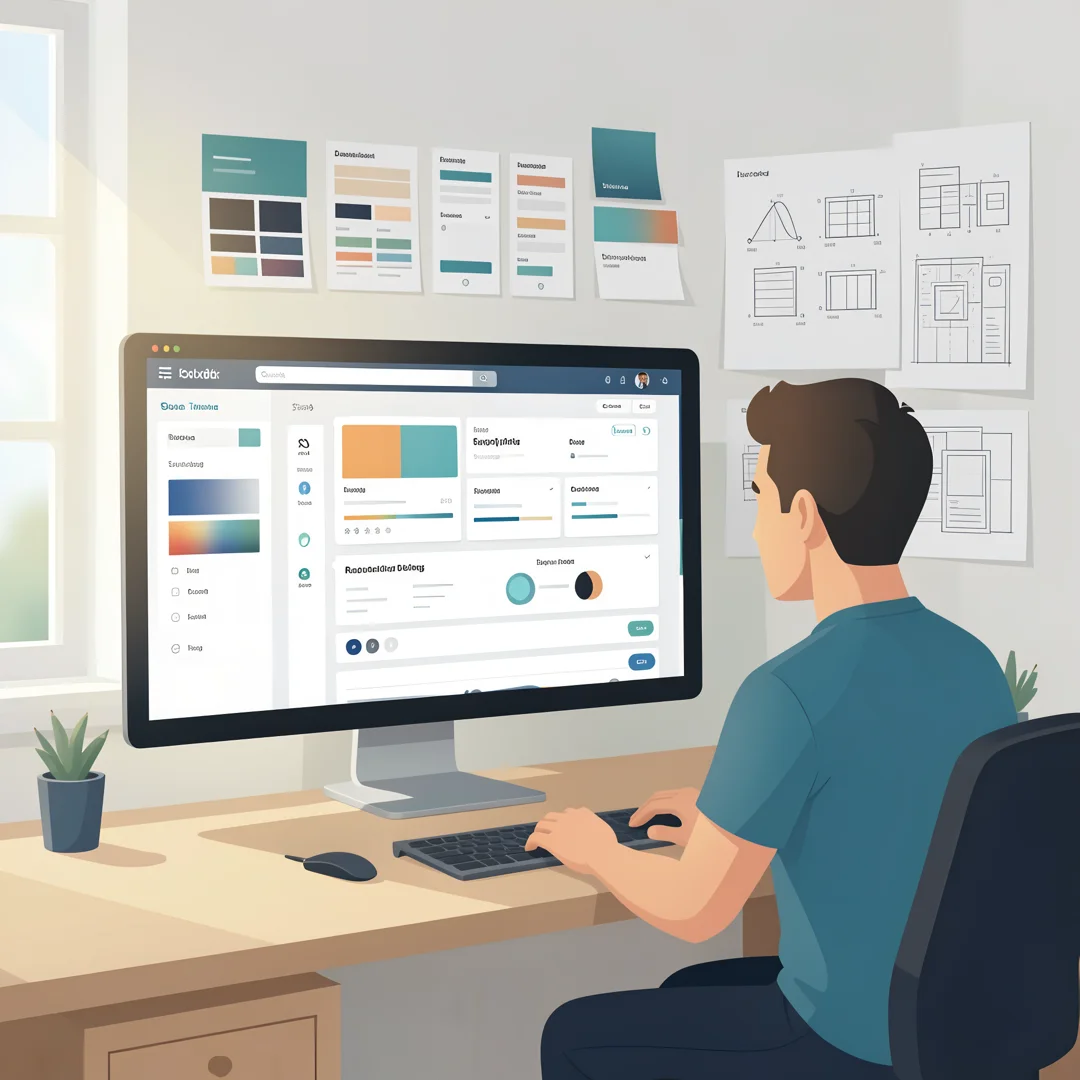
How They Relate
UI and theme are distinct but interdependent. The UI provides the structure and the interactive components. The theme provides the appearance of those components. A single UI can support many themes, and a single theme can be adapted to many different UIs. In modern web development, this separation is often managed through design tokens — named values for colors, spacing, and typography that both the UI and the theme reference.
Why the Distinction Matters
Mixing up UI and theme leads to wasted effort. Someone might ask for a “complete redesign” when they only want a new color scheme. Others might try to fix a usability problem by changing the theme, which does nothing to improve navigation or clarity. Keeping the two concepts separate helps you direct your budget, time, and feedback to the right place.
Deep Dive
Now that the basics are clear, let’s explore the nuances. This section covers how UI and themes function in practice, where they overlap, and what to watch out for.
The Anatomy of a UI
A user interface is built from layers. At the foundation are structural elements: layout grids, navigation architecture, and content hierarchy. Above that sit interactive components: buttons, sliders, toggles, and input fields. On top of that is the visual layer, which is largely governed by the theme. Finally, there is the behavioral layer: what happens when you click, swipe, or type. Good UI design coordinates all these layers so the product feels coherent.
Accessibility is a critical part of UI. An interface must be usable by people with varying abilities, which means sufficient color contrast, keyboard navigability, screen reader compatibility, and clear focus states. Some of these concerns touch both UI and theme — for example, color contrast is a theme decision, but ensuring every interactive element is reachable by keyboard is a UI decision.
The Role of a Theme
Themes exist for several practical reasons. First, they enforce consistency. When every button in an app uses the same theme, users learn patterns quickly and feel more comfortable. Second, they speed up development. A design system with a robust theme lets teams build new screens without reinventing visual styles. Third, they enable personalization. Users appreciate dark mode, high-contrast mode, or brand-specific themes, and a well-architected product can offer these without breaking the interface.
Themes also support branding. A company’s theme — its colors, fonts, and logo treatment — communicates identity and values. A playful brand might use rounded shapes and bright colors; a financial institution might use conservative blues and serif fonts. The theme is often the most immediately recognizable part of a product.
Where UI and Theme Overlap
The line between UI and theme is not always sharp. Consider a button. Its size, position, and click behavior are UI concerns. Its color, border radius, shadow, and font are theme concerns. But what about its hover state? The fact that it changes on hover is a UI behavior; the specific color it changes to is a theme decision. In practice, designers and developers collaborate across these boundaries, and modern tools like Figma and Storybook help teams manage the overlap.
Another overlap area is responsive design. A theme might define different spacing values for mobile and desktop, but how the layout reflows is a UI concern. Getting this right requires both a flexible UI structure and a theme that supports multiple breakpoints.
Common Misconceptions
- “UI is just visual design.” UI includes interaction, structure, and accessibility, not just looks.
- “A theme is a skin.” While themes are often described as skins, they can also include behavioral tokens like animation timing and state transitions.
- “You need a new UI to rebrand.” Often a new theme is enough. Rebranding usually means changing colors, fonts, and imagery, not rebuilding the entire interface.
- “Themes are only for dark mode.” Themes cover far more: seasonal campaigns, white-label products, accessibility modes, and regional variations.
Best Practices
Whether you are building a product, managing a website, or simply trying to make smart choices as a user, these best practices will help you get UI and themes right.
For UI Design
- Start with user needs. Before choosing colors or fonts, map out what users are trying to accomplish and design the flow around that.
- Keep it simple. Every element on a screen should earn its place. Remove clutter and reduce cognitive load.
- Prioritize accessibility. Follow WCAG guidelines for contrast, text size, and keyboard navigation.
- Test with real users. Usability testing reveals problems that internal reviews miss.
- Design for multiple devices. Ensure your UI works on phones, tablets, and desktops.
For Themes
- Build a design token system. Define colors, spacing, and typography as reusable variables.
- Document everything. A theme is only useful if others know how to apply it correctly.
- Support dark mode and high contrast. These are not optional niceties anymore; users expect them.
- Test themes across components. A color that looks great on a button might fail on a chart or a form error state.
- Version your themes. As your product evolves, keep track of theme changes so you can roll back if needed.
For Collaboration
UI designers, theme designers, developers, and product managers all touch the same product. Establish a shared vocabulary and a single source of truth, such as a design system. Regular reviews and clear handoff processes prevent drift between what was designed and what gets built. Reliable information and consistent habits lead to better long-term outcomes, and that applies doubly to cross-functional teams.
Step-by-Step Guide
Step 1: Understand the fundamentals
Begin by making sure you can clearly distinguish UI from theme. Write down a one-sentence definition of each in your own words. Identify three examples of UI elements and three examples of theme choices in a product you use daily. This simple exercise cements the concepts before you apply them.

Step 2: Assess your starting point
Look at your current product, website, or project. Is the UI structure sound? Are users able to navigate and complete tasks easily? Is the theme consistent, or are there mismatched colors and fonts? Gather feedback from users or colleagues. A clear-eyed assessment tells you whether you need UI work, theme work, or both.
Step 3: Set clear goals
Define what success looks like. Goals might include “increase sign-up conversion by 15%,” “achieve WCAG AA contrast compliance,” or “launch a dark mode theme by Q3.” Make goals specific and measurable. When goals are vague, teams waste time arguing about subjective preferences instead of solving real problems.
Step 4: Gather necessary resources
Collect the tools and assets you need. This could mean a design system, a component library, brand guidelines, color contrast checkers, or access to user testing platforms. If you are working with a team, assign clear ownership for UI and theme decisions. Having the right resources in place prevents mid-project scrambling.
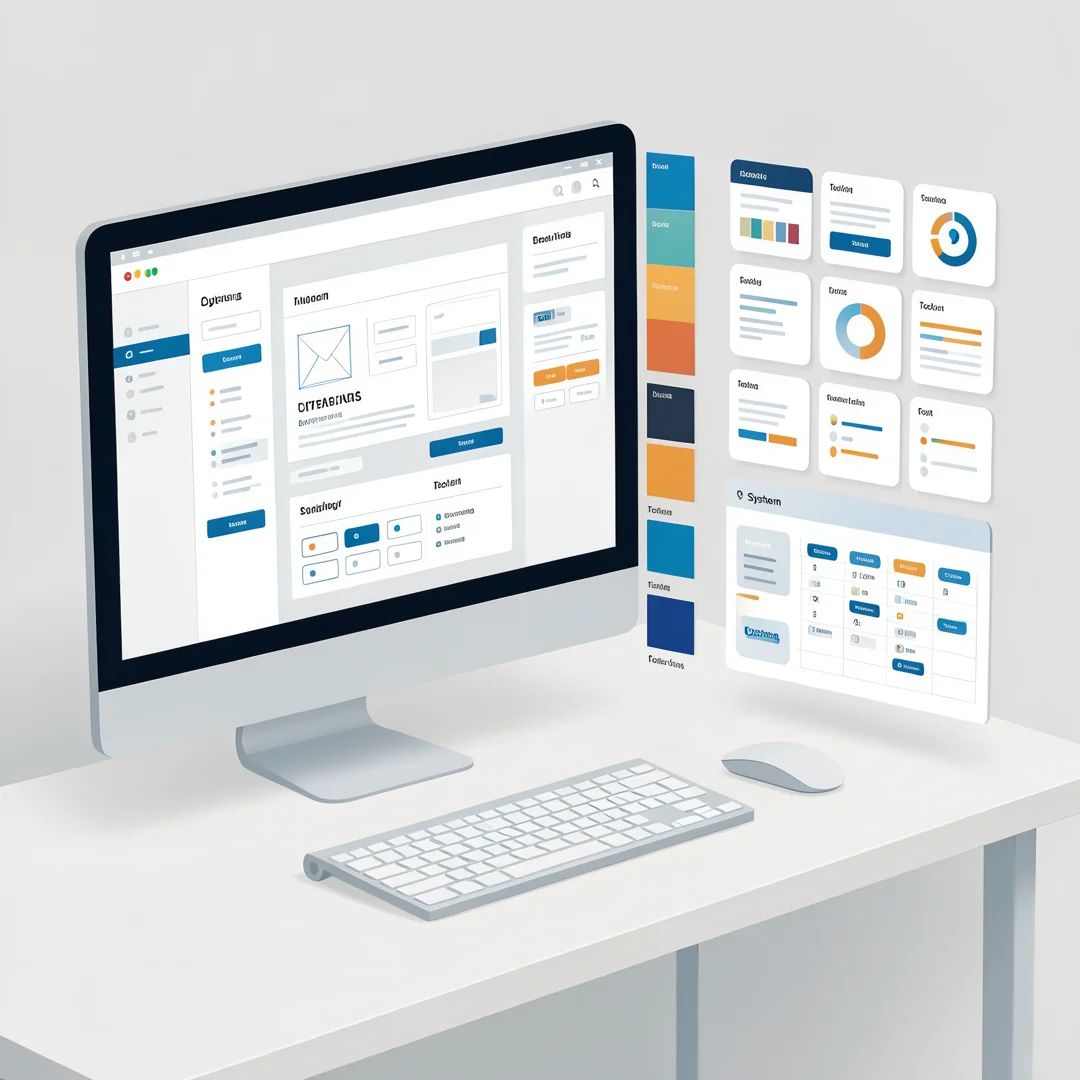
Step 5: Apply the core methods
You now have a solid foundation for what is ui and a theme. Apply the best practices above and revisit this guide as your needs evolve.